

QCAD on macOS
This page is for users of the macOS operating system. The file you need depends on your macOS version and processor type.
For brevity, version numbers below are shown as 27.x.x. Replace this with the actual version number of the QCAD release you downloaded, for example 27.0.0.
Finding your macOS version and processor type
- Click the Apple icon in the top-left corner of your screen.
- Choose About This Mac. The dialog shows the macOS version number right underneath or beside the label macOS, for example 13.2. Write it down.
- The processor type is shown beside the label Processor or Chip:
- If it says Chip followed by Apple M1, M2, M3, M4 or M5 (possibly with Pro, Max or Ultra), your Mac has an Apple Silicon processor. Choose Apple Silicon (M1–M5) when downloading.
- If it says Processor followed by something like Intel Core i5 or Intel Core i7, your Mac has an Intel processor. Choose Intel when downloading.
Getting the correct setup file
Installation from download
Use your browser to access your personal download area (see the e-mail you received after your purchase).
The download page detects your system and preselects the matching options. The line Detected below the selection shows what was detected. Check that it matches the macOS version and processor you noted above, and correct the selection if needed:
- Operating system: choose macOS.
- Processor: choose Apple Silicon (M1–M5) or Intel.
- Version: choose your macOS version, for example macOS 13 Ventura.
The section Recommended now shows the package that best matches your Mac. Click it to start the download. The file name is similar to qcad-27.x.x-pro-macos-14.4-27-qt6-arm64.dmg. Files for Apple Silicon end with -arm64.dmg; files for Intel end with .dmg alone.
Other packages for the same version are listed under Other packages for version. You normally don't need them. Packages marked runs on Apple Silicon using Rosetta 2 are Intel builds. They also work on Apple Silicon, but they run slower than the native Apple Silicon build.
QCAD 27 requires macOS 12 Monterey or later. If you use an older macOS version, the page offers the newest QCAD version that still supports it, listed under Older versions.
Please keep a backup copy of the downloaded file, because your personal download link expires.
After the download finishes, use Finder to locate the file on your hard disk.
Installation
Double-click the file you located in the previous section. It is a disk image that contains the QCAD application; double-clicking shows its contents:
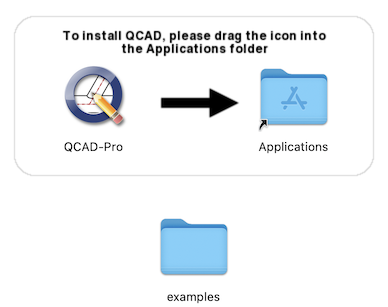
Drag the QCAD application icon on the left to the Applications folder shown on the right in the same Finder window.
Launching QCAD
QCAD is now installed. To launch it, open the Applications folder and double-click the QCAD application icon.
Uninstalling
To remove QCAD, drag the QCAD icon from your Applications folder to the Trash in your dock.