

2.10 External References
In this QCAD tutorial, we learn how to work with external references.
External references let us link separate drawing files into our current drawing.
Example drawing:Dining Room.dxf
External references, also called XRefs, are a powerful way to organize drawing projects.
An external reference links a separate DXF or DWG file into the current drawing.
In this example drawing, the chairs are external references to a DXF file containing the top view of a chair.
Unlike a regular block, an XRef is not stored inside the drawing file itself.
The linked file stays on disk as a separate file and is loaded each time the drawing is opened.
XRefs are ideal for team workflows where different people work on separate parts of a project.
When the chair drawing file is updated by someone, all chairs in this drawing can also be updated to reflect those changes.
In the property editor, we can see that the selected chair is in fact a block reference.
A bit further down, we can see that this block reference references a block named "Chair" which points to an external reference.
In the block list, we can find the block called "Chair", marked with a special icon to indicate that this block is an external reference, backed by a separate file on disk.
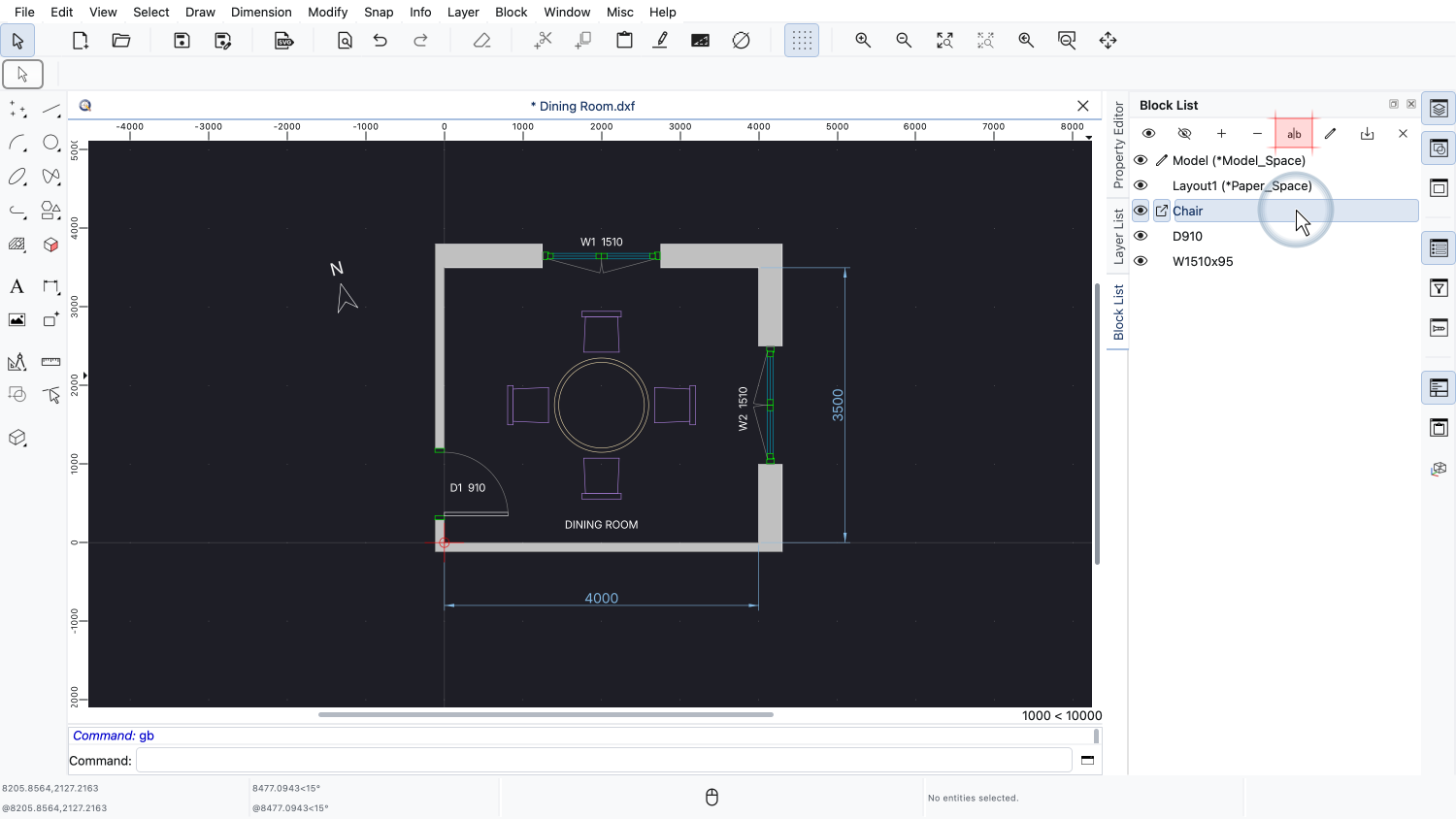
To see which file an external reference is linked to, we double-click it in the block list or click the rename button.
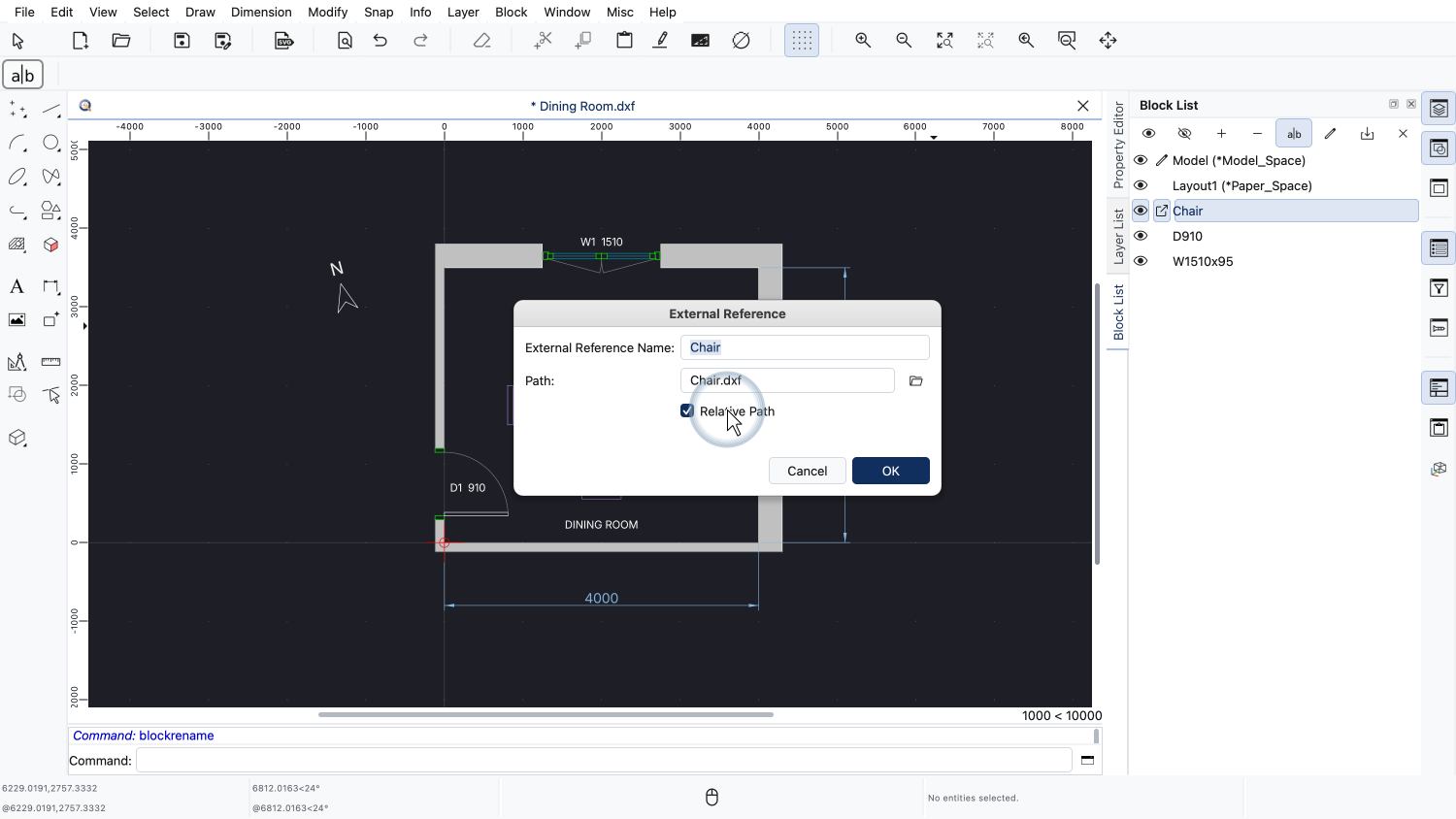
A dialog opens with the settings of the external reference.
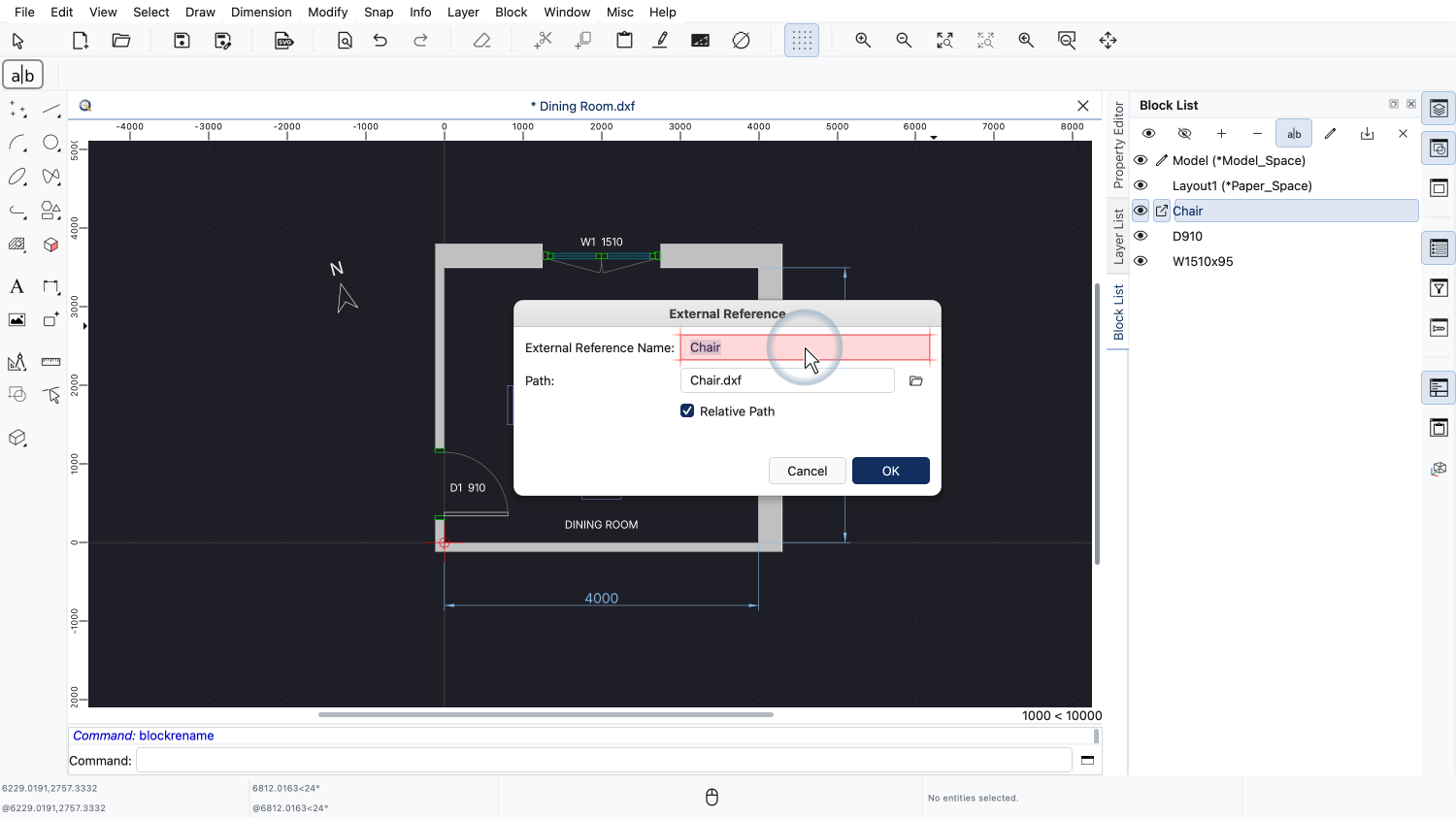
At the top, we can see the name of the block that holds the external reference.
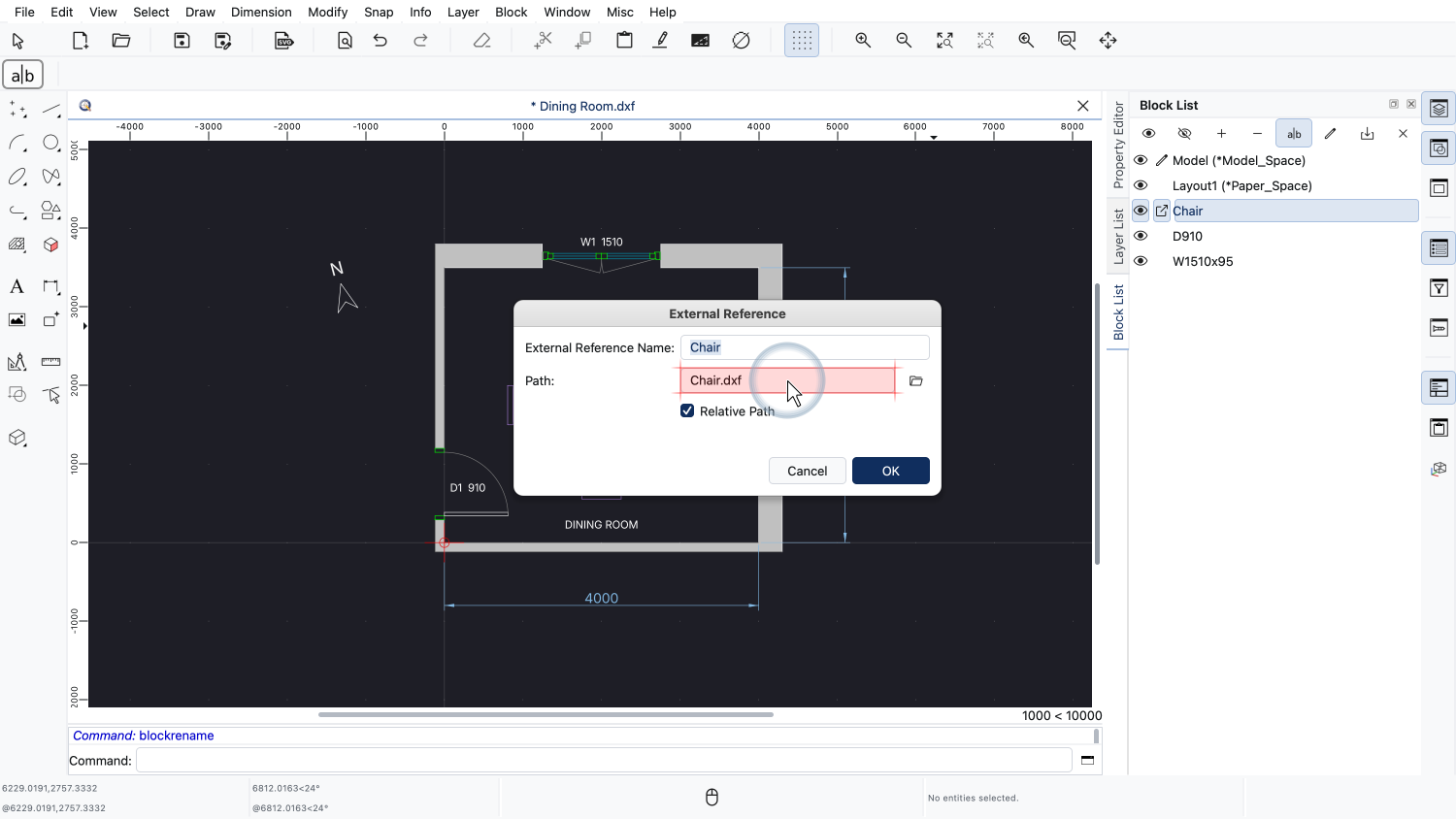
Below the name, we can see the file name of the drawing file this block refers to.
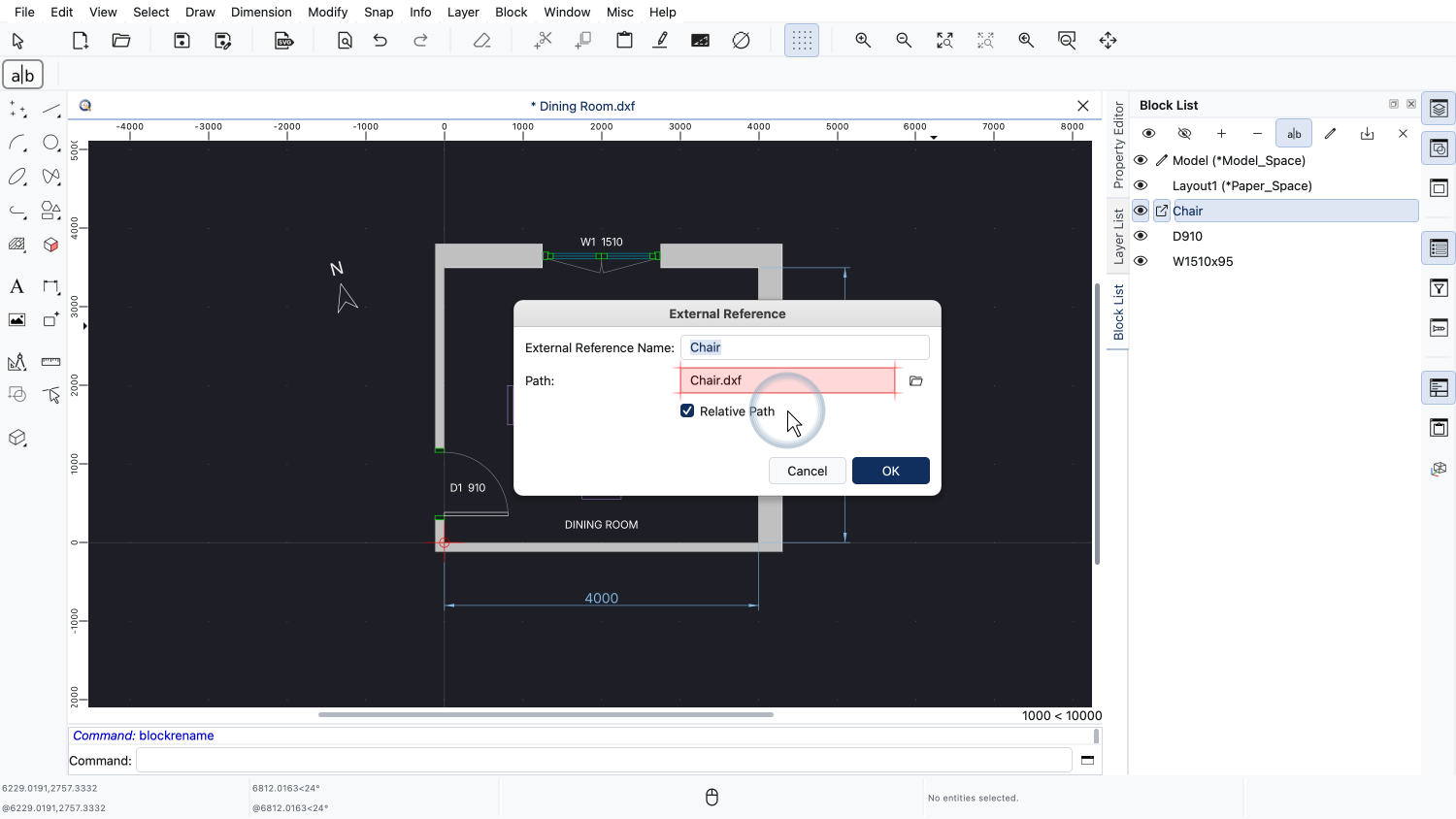
Here, the file is stored relative to our drawing, since the option "Relative Path" is turned on.
We could edit the file name here at any time to link this block to a different file, for example a new version of the chair or a different chair type.
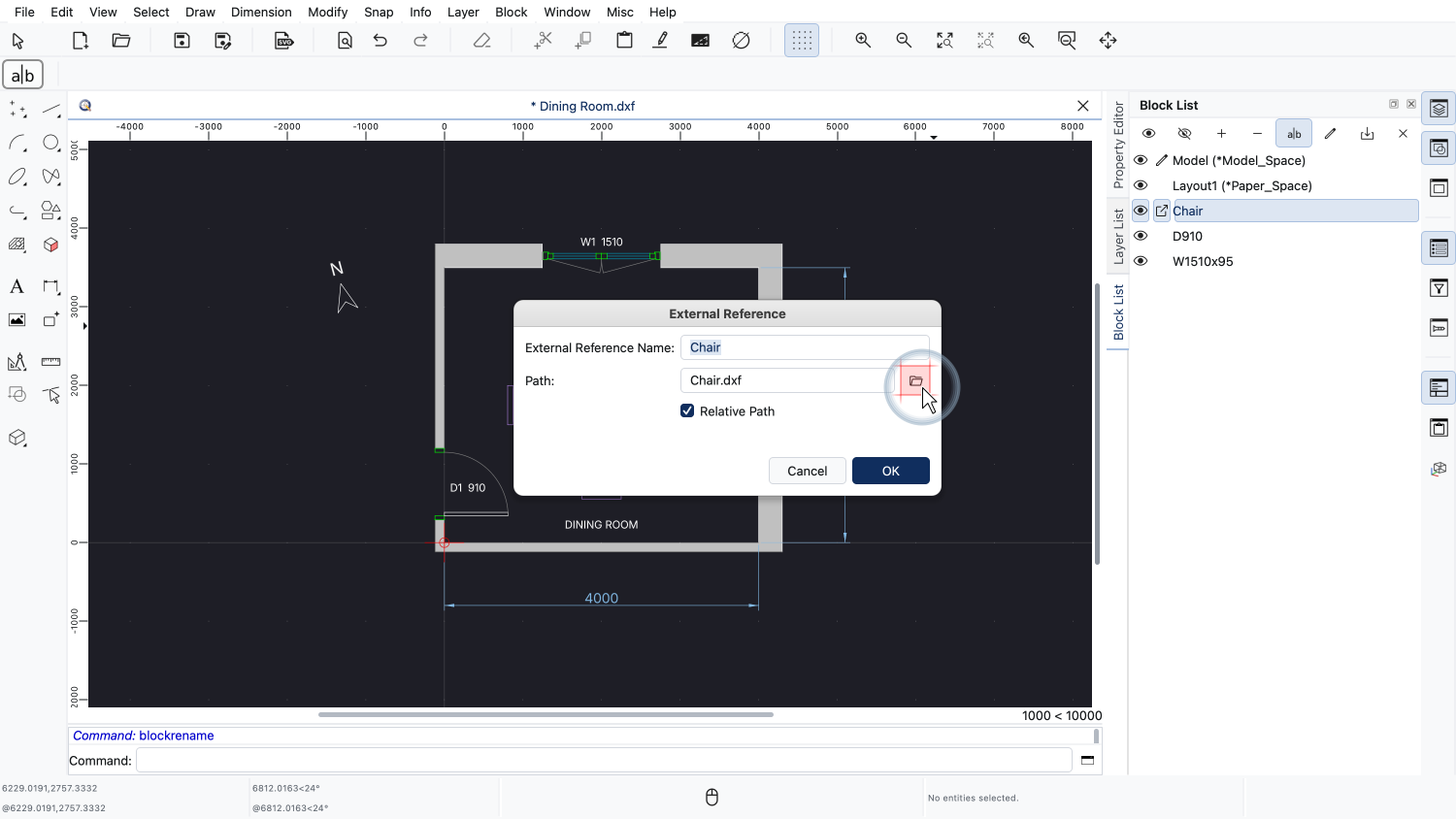
The button at the right lets us choose a different file for the external reference in a file dialog.
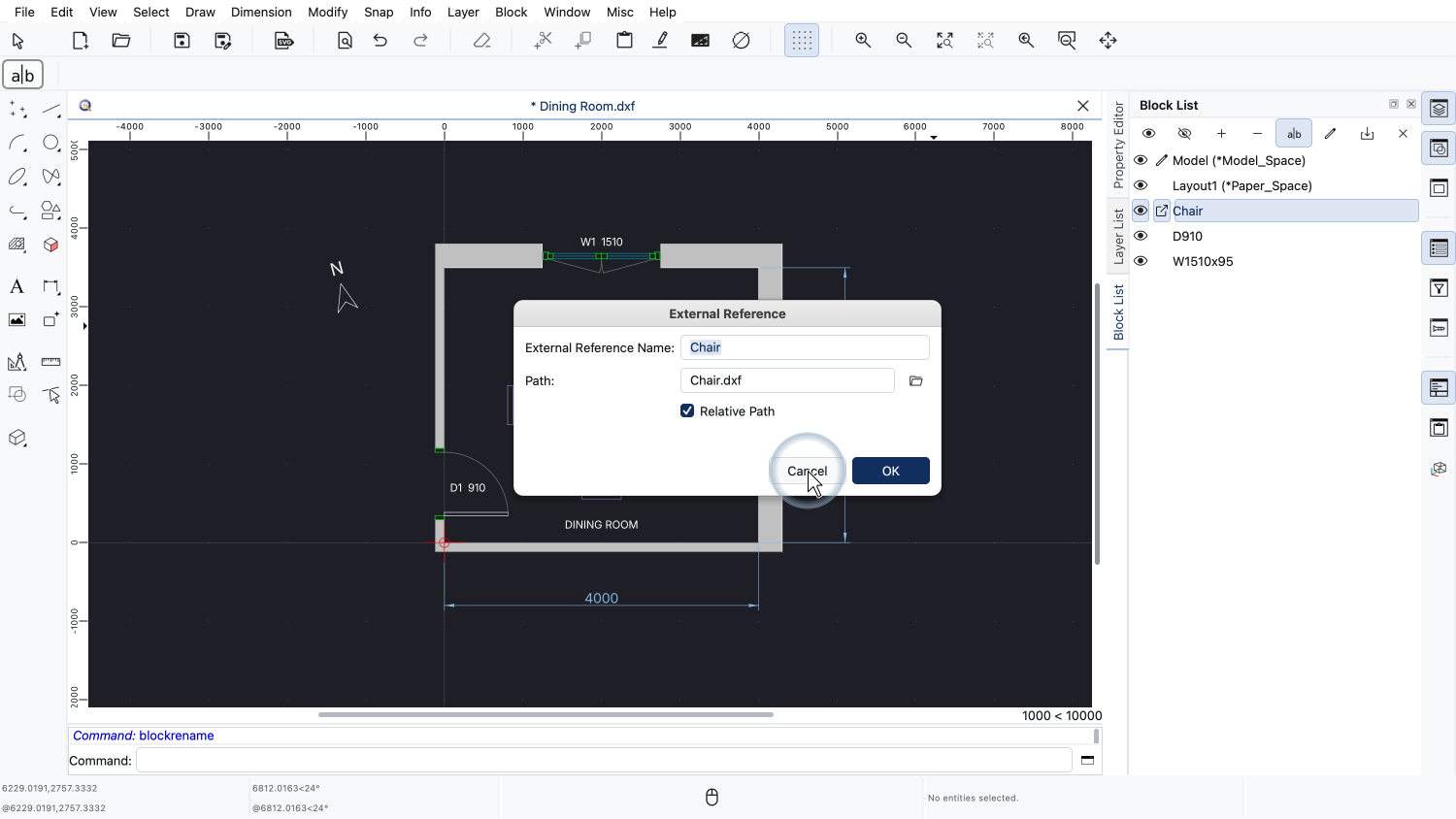
Right now, we don't want to change anything and close the dialog.
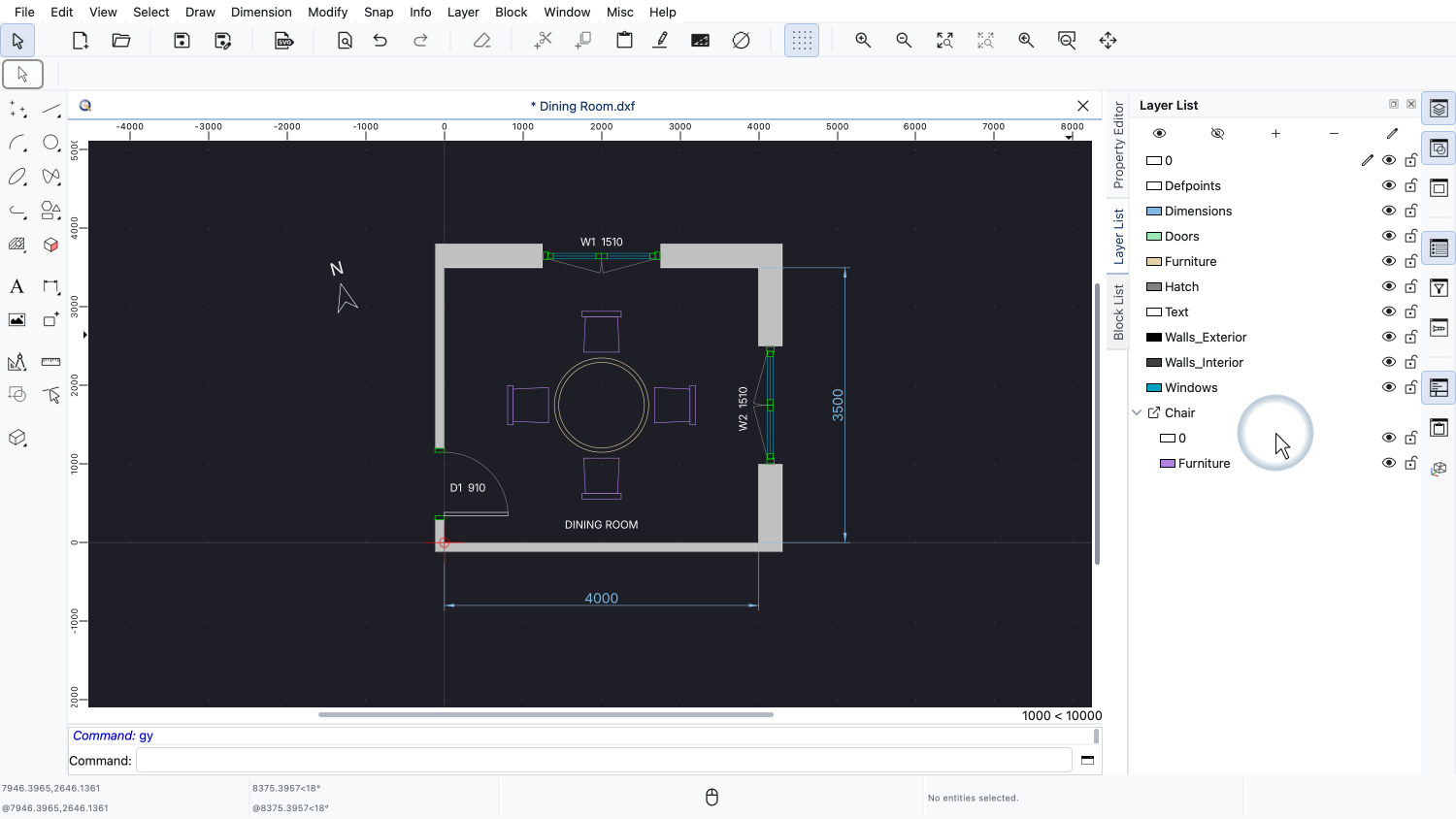
An external reference does not only bring its geometry into our drawing, but also its layers.
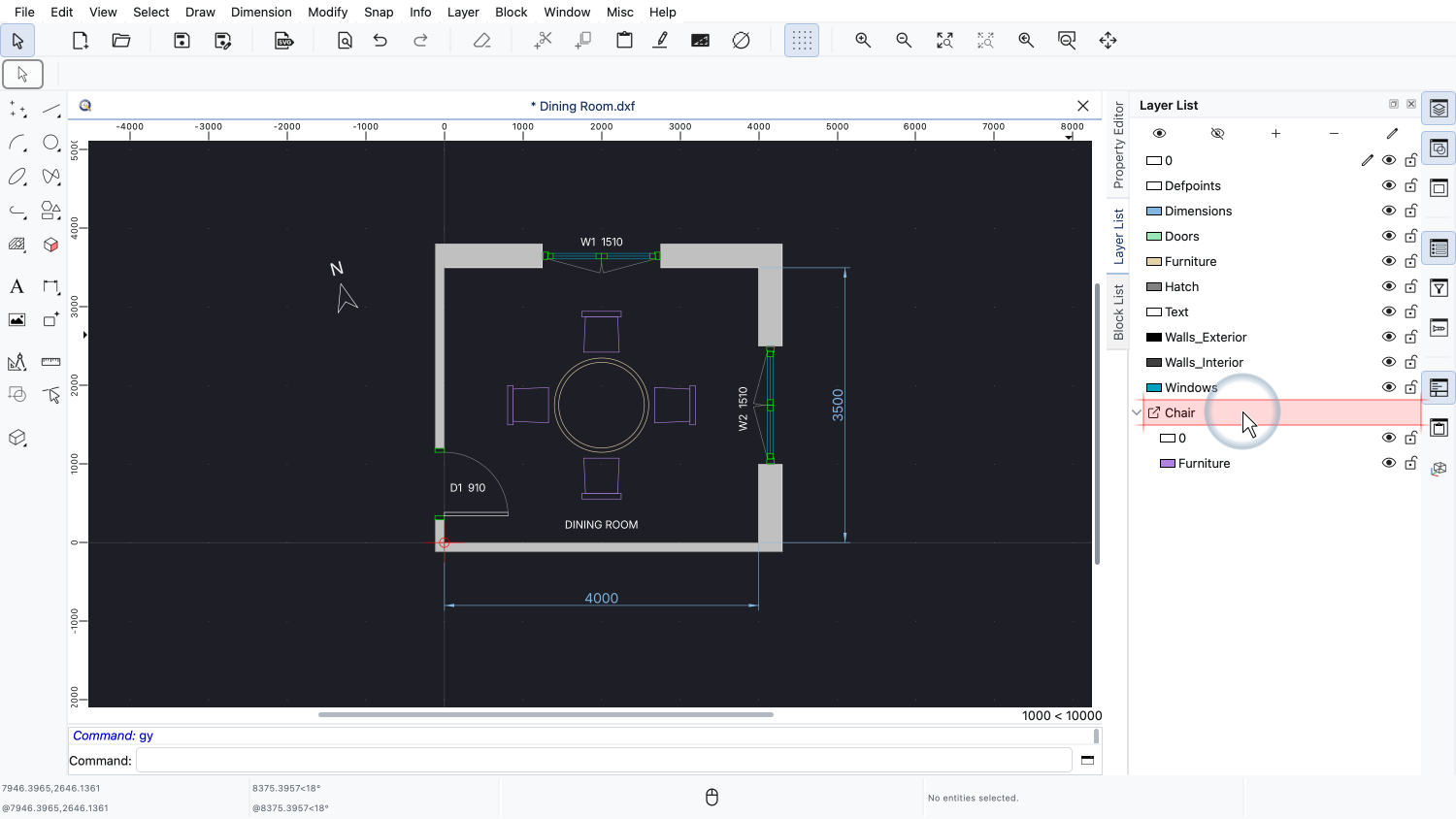
In the layer list, the layers of the chair file are shown in a group of their own, named after the external reference.
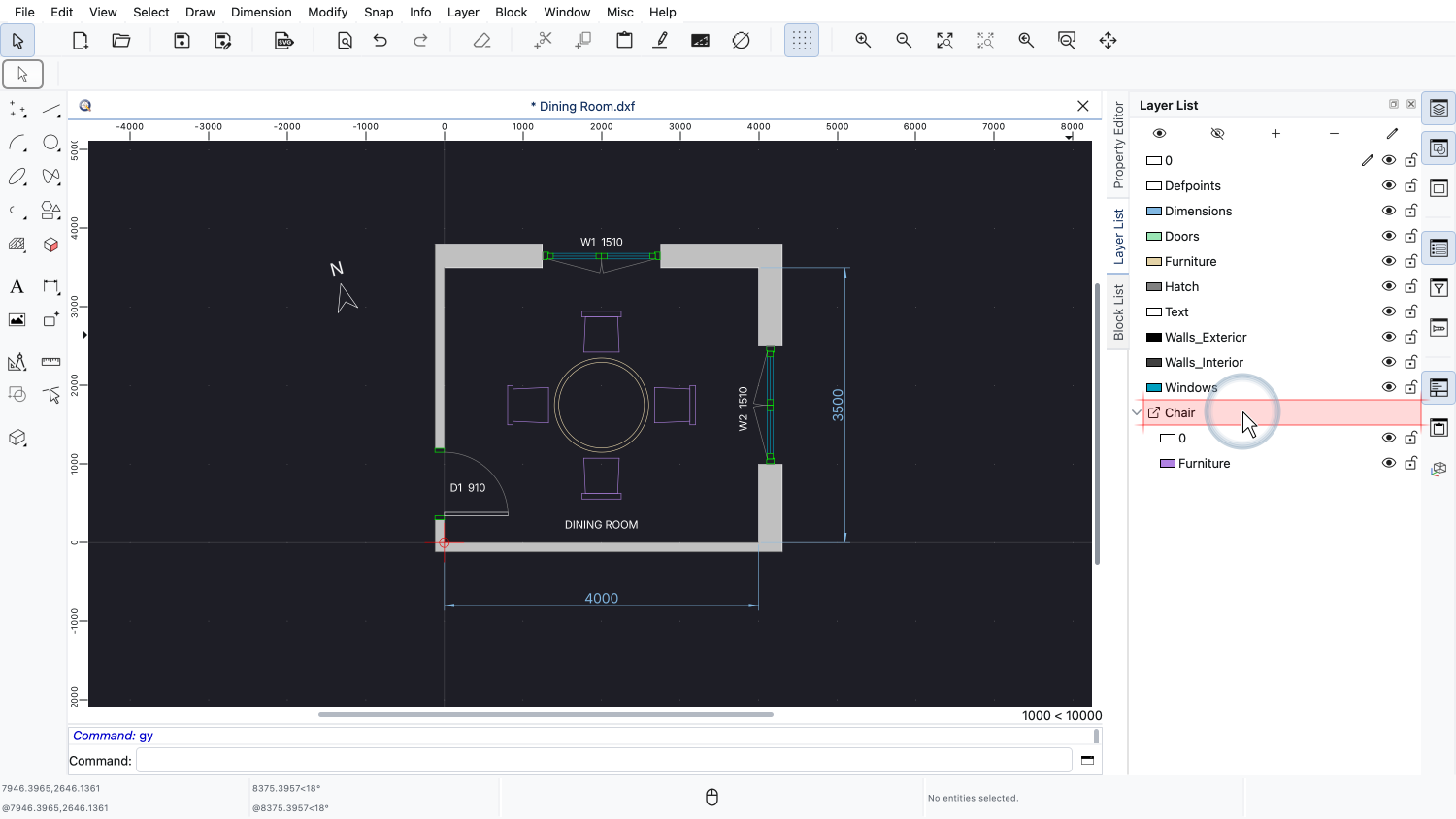
These layers are not from our own drawing. They were copied into our drawing from the chair file when the external reference was loaded.
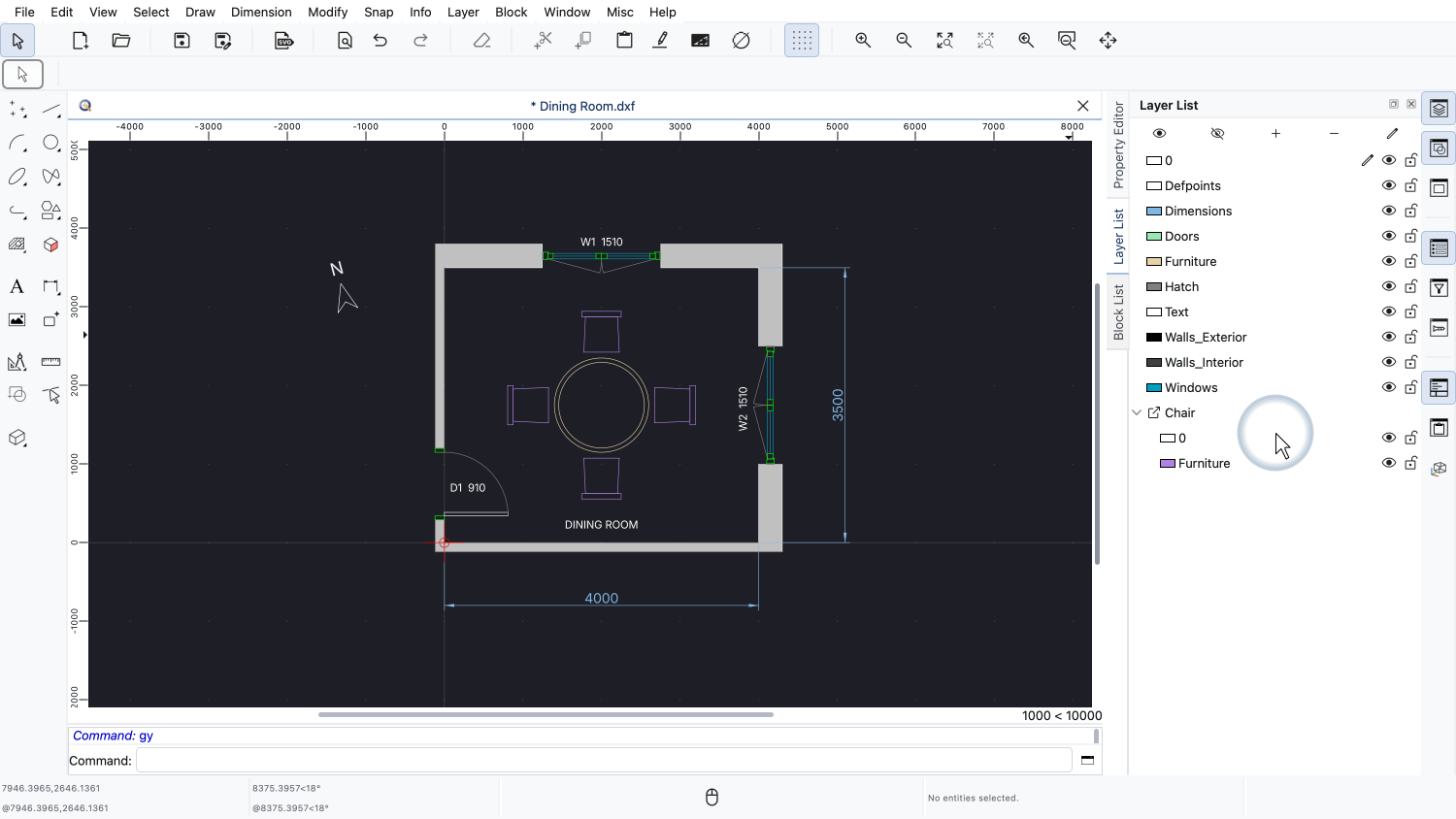
The layers of an external reference can be edited here, just like any other layer of our drawing.
We can, for example, turn such a layer off, or change its color, line type or line weight.
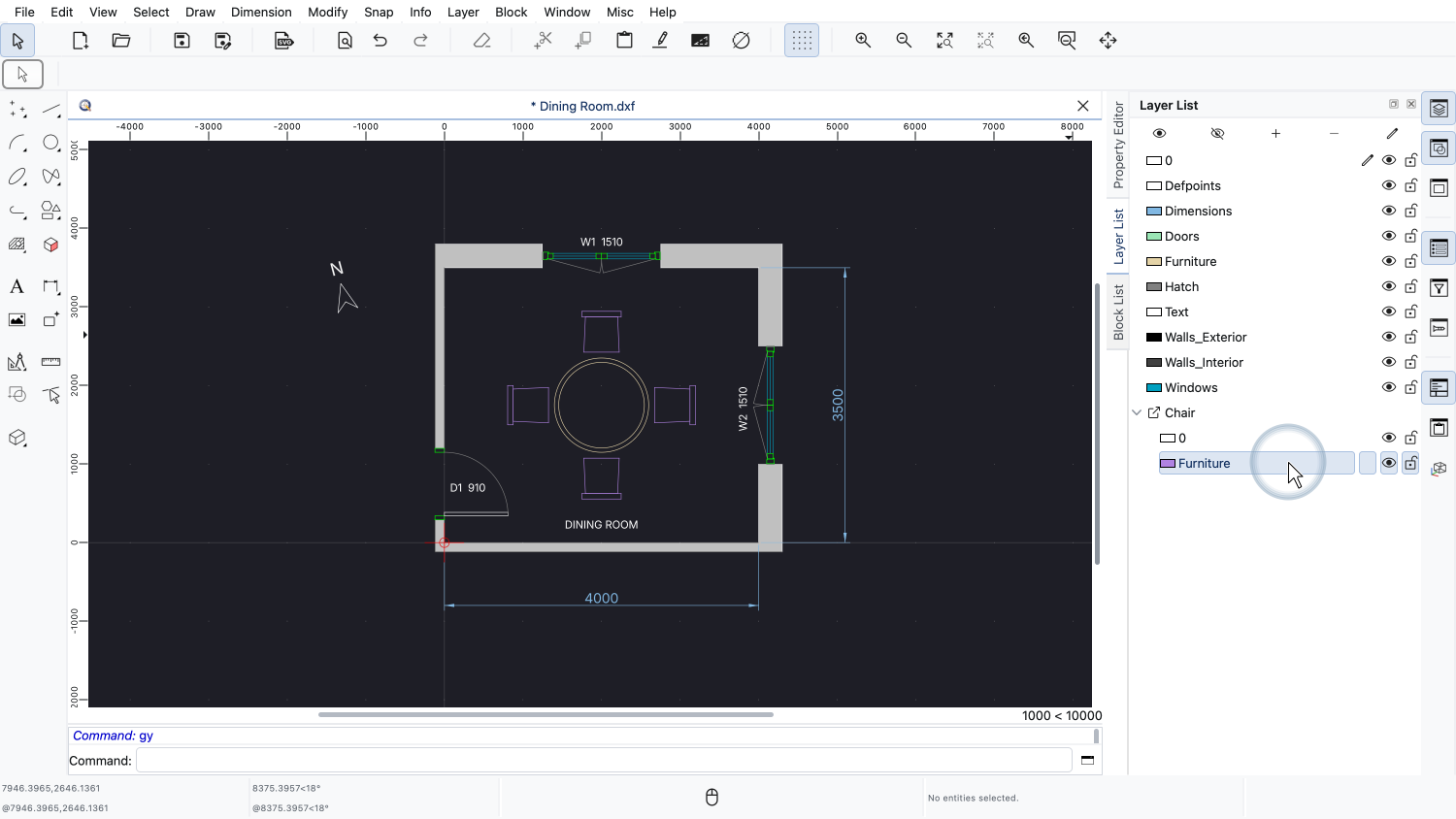
Let's change the color of one of the layers of the chair to red.
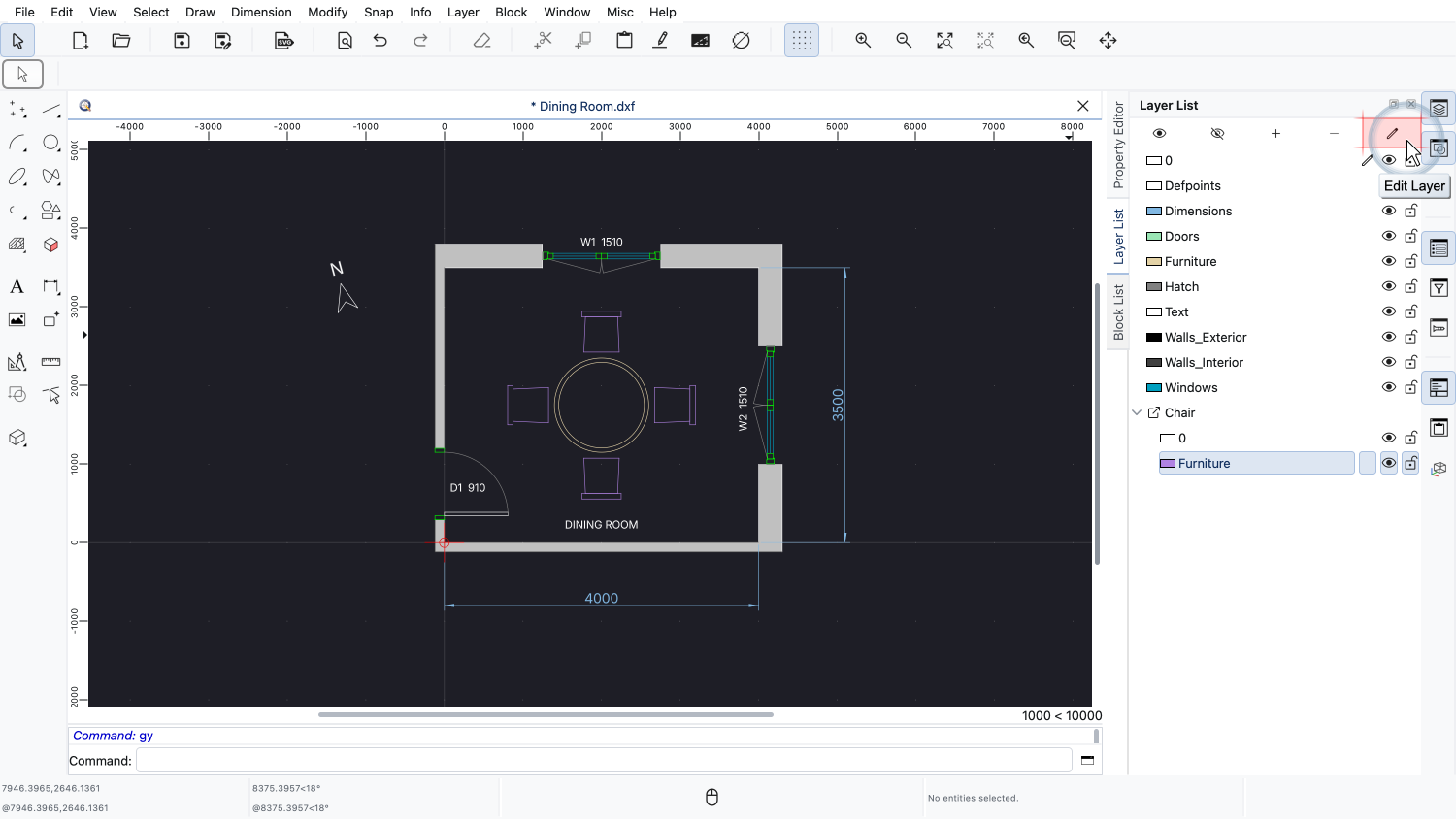
With the layer selected, we click the button above the layer list to edit it.
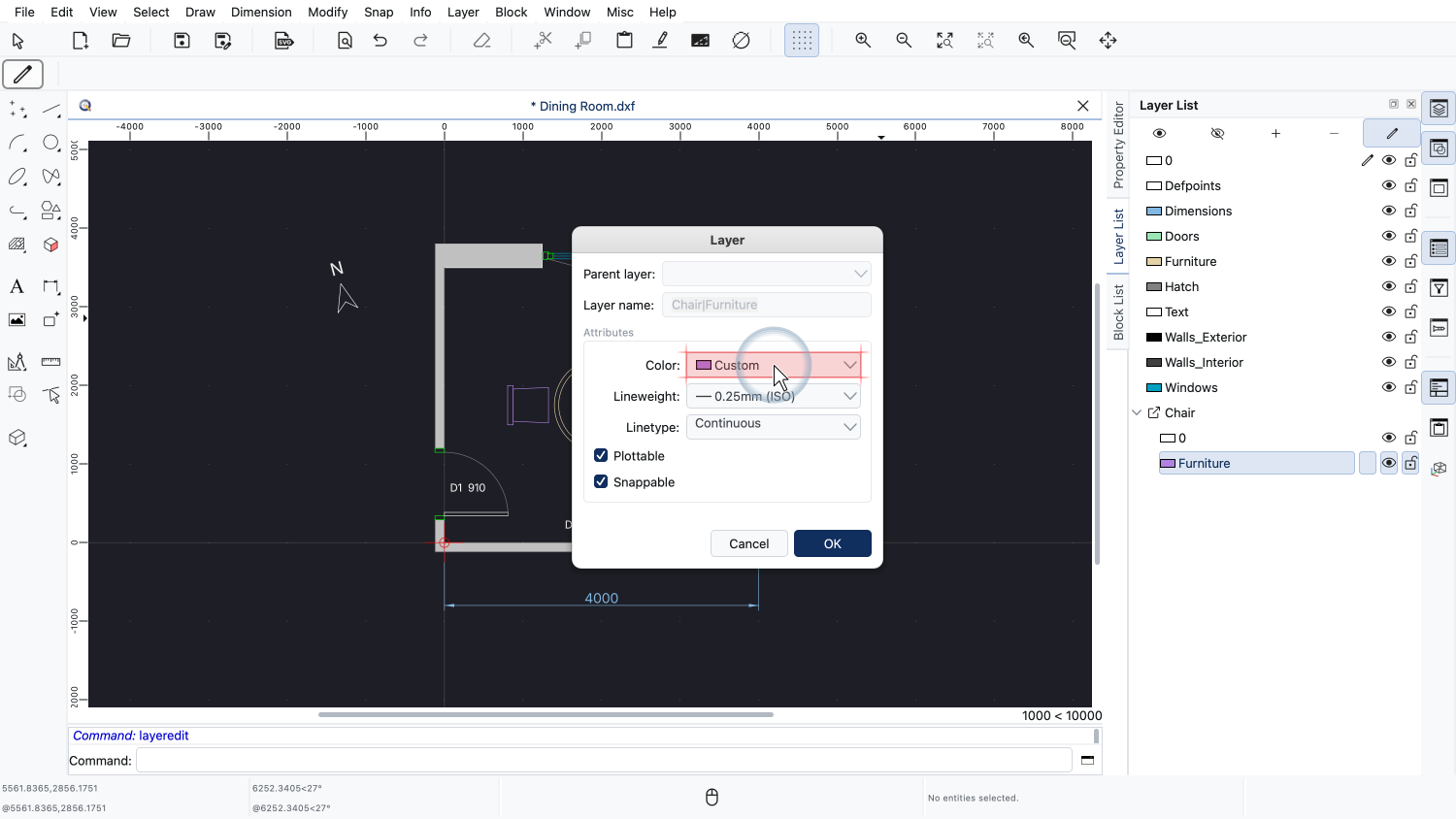
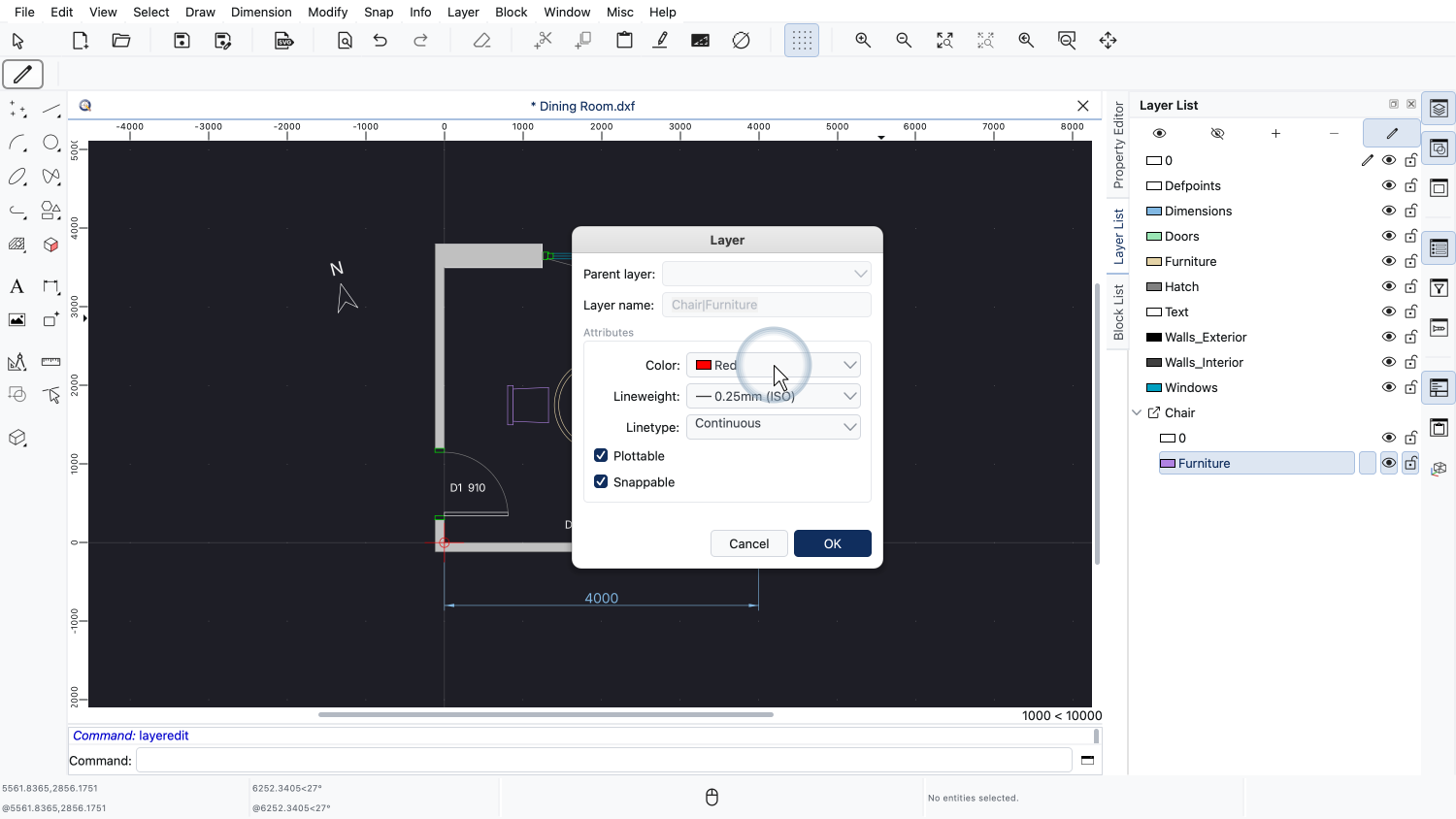
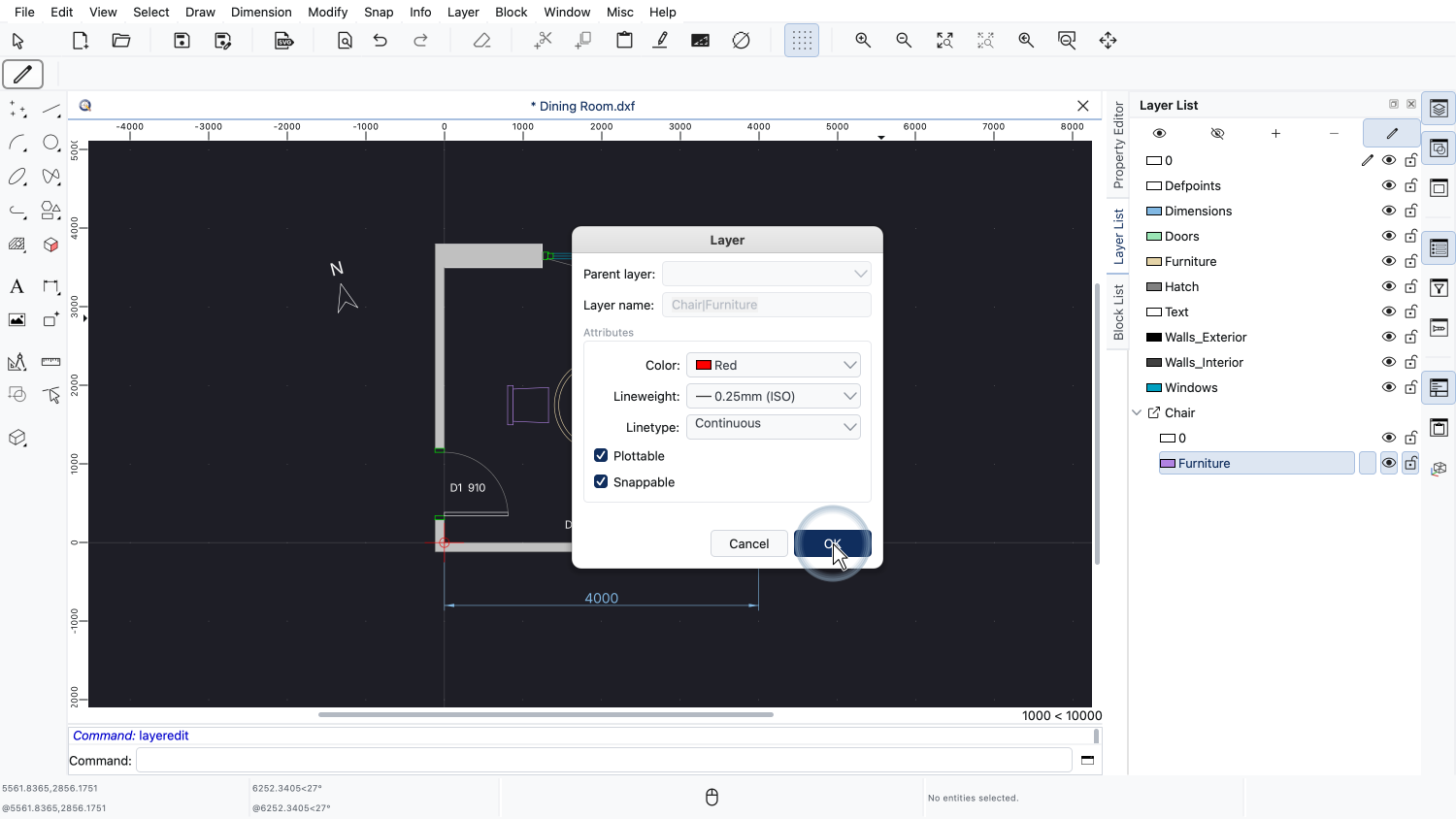
In the layer dialog, we change the color of the layer to red.
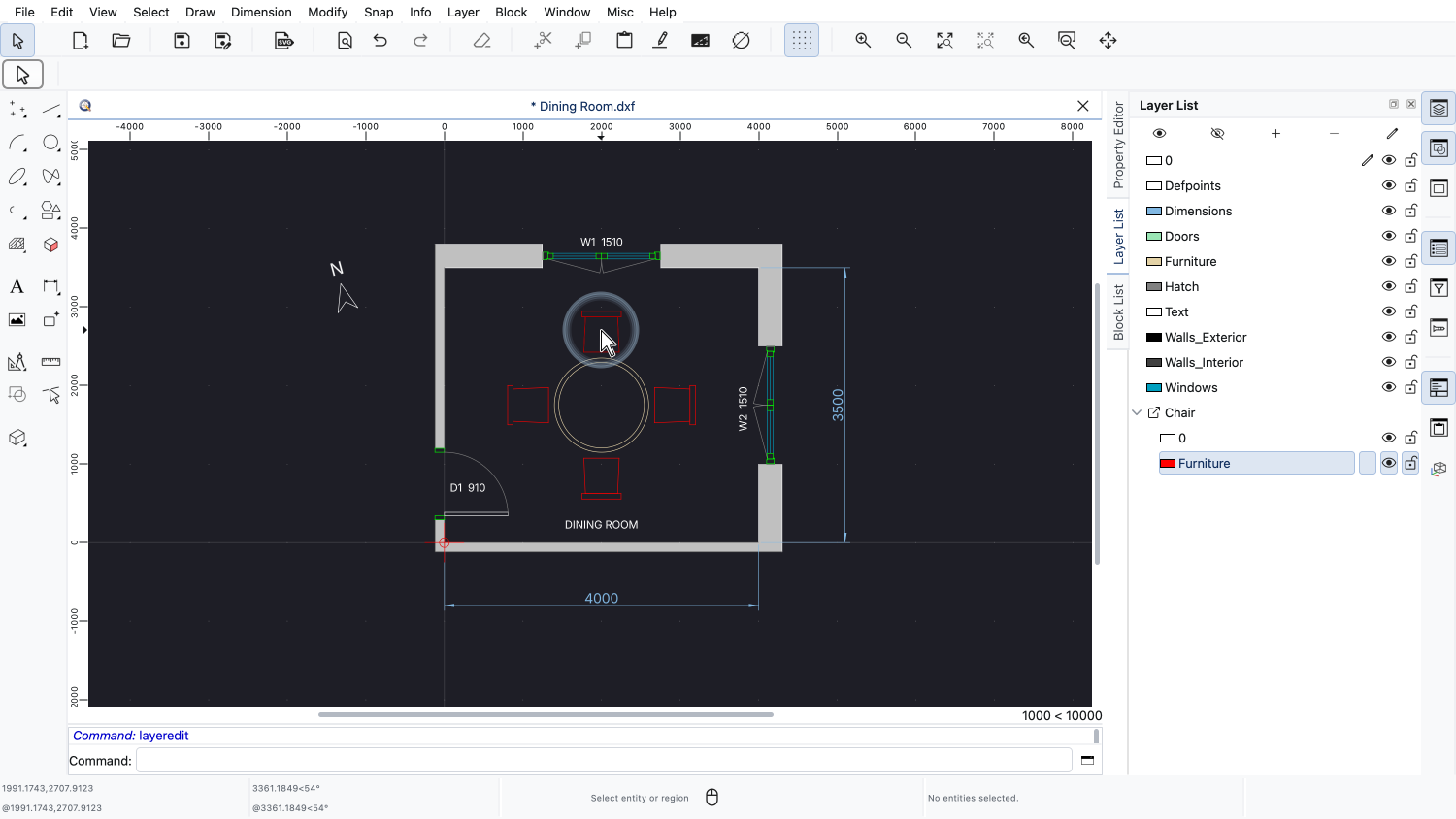
All chairs are now shown in red.
Such layer changes override the layer settings that come from the external file, but only for this drawing.
The external reference file itself stays untouched on disk and other drawings that link to it are not affected.
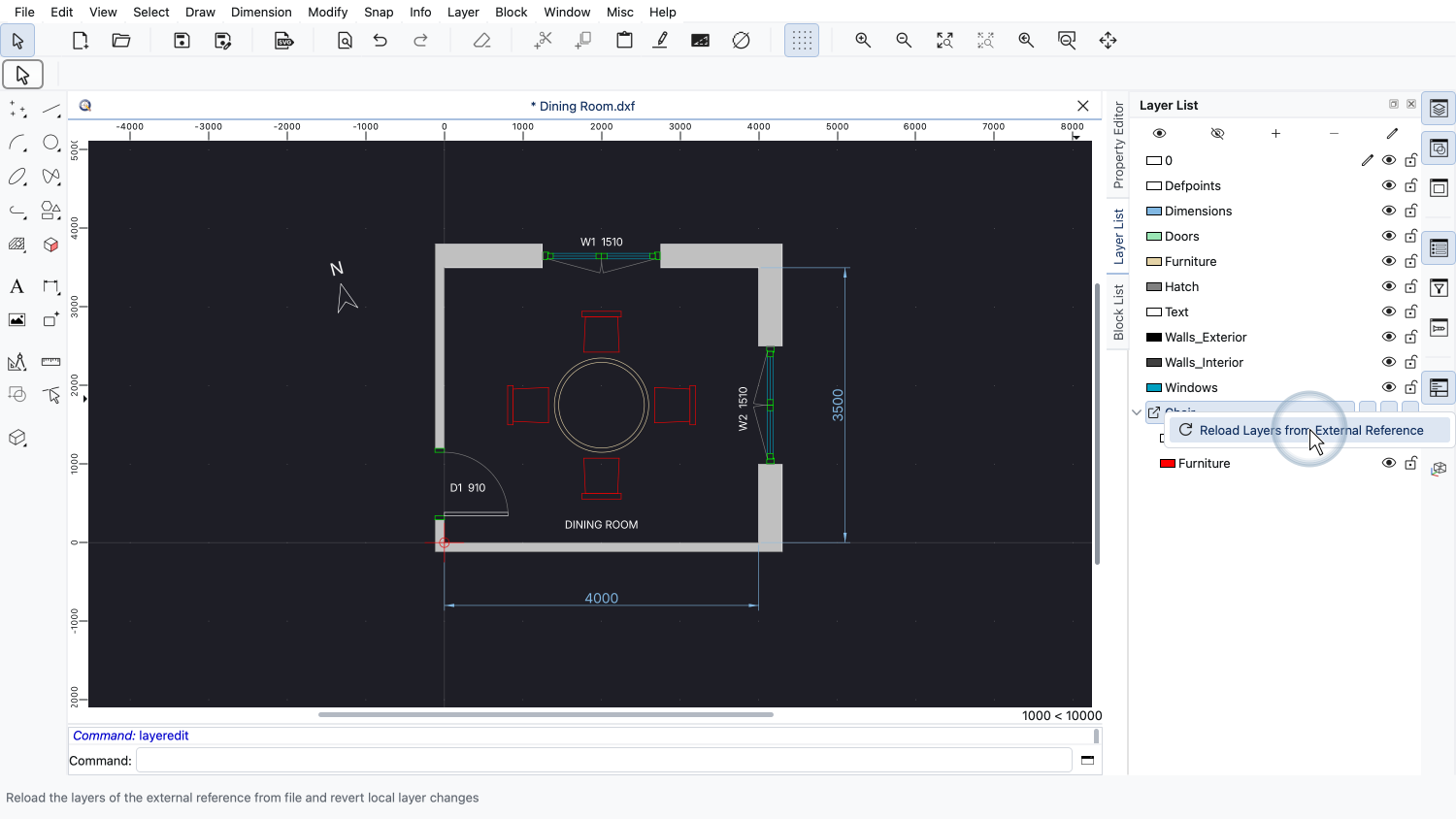
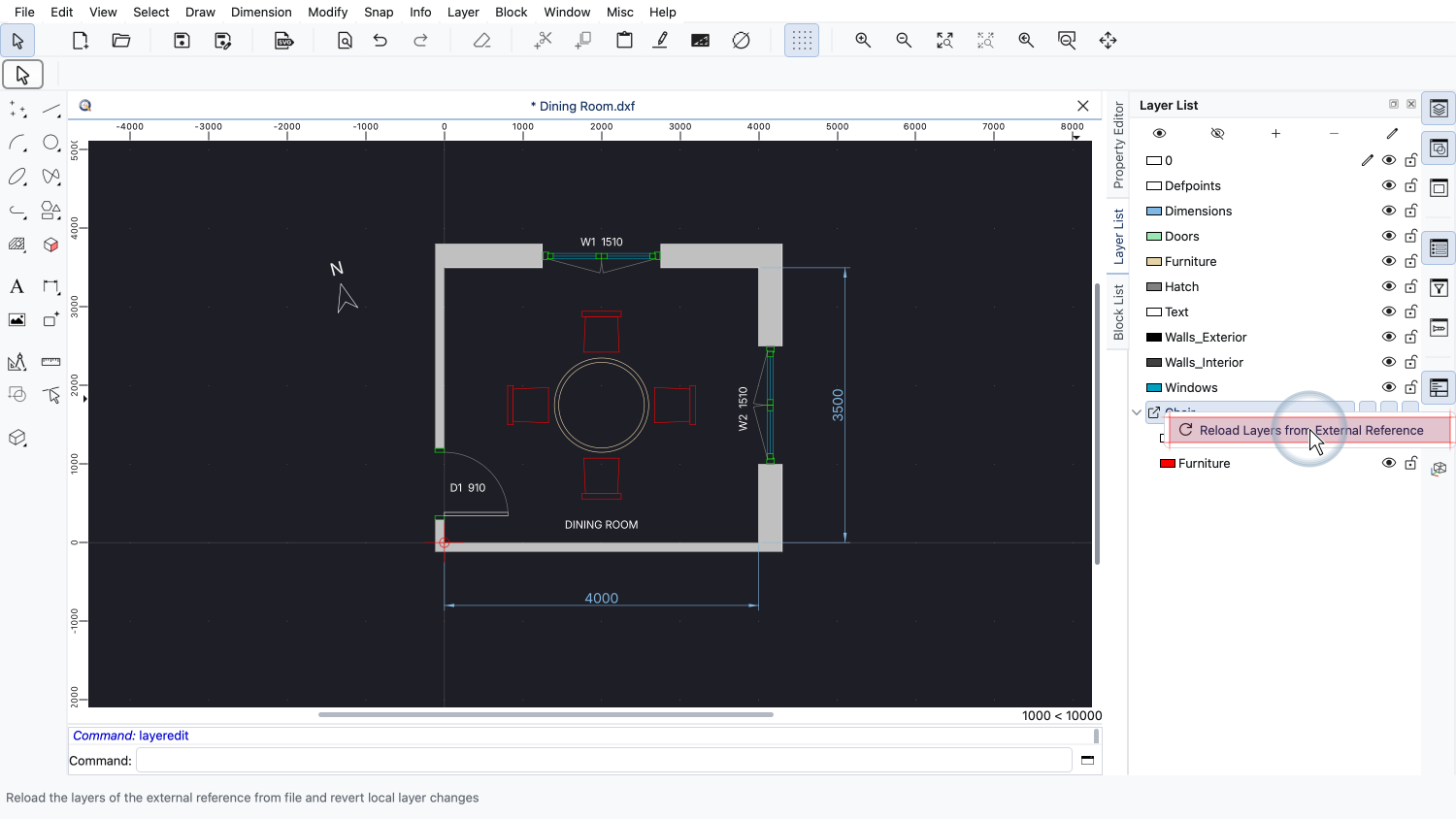
To discard such local changes again, we can right-click the group of the external reference and choose "Reload Layers from External Reference".
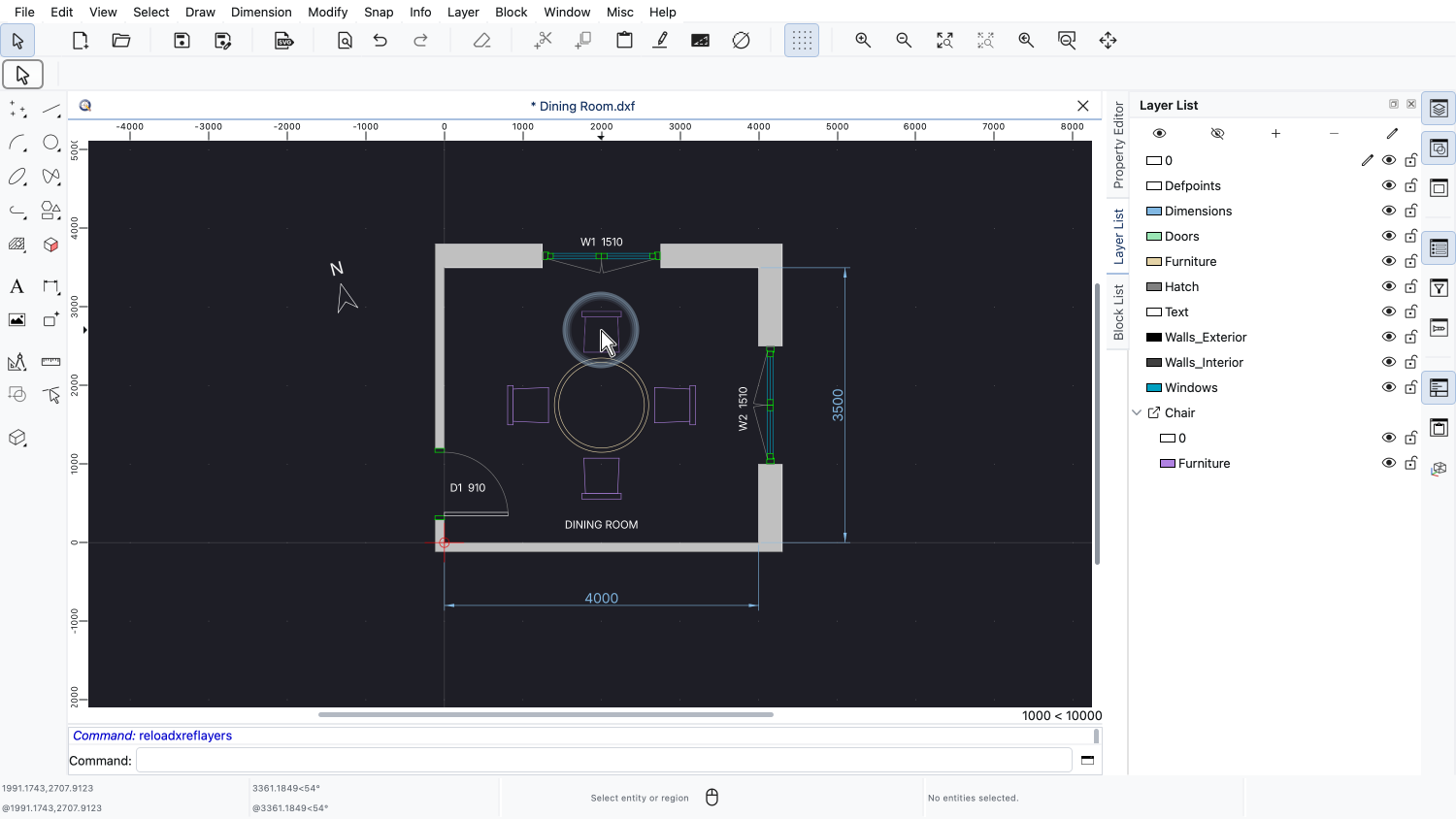
The layers of the chair are restored from the chair file again and the chairs are back to their original color.
We want to add a plant to this floor plan using an external reference to a plant drawing we already have.
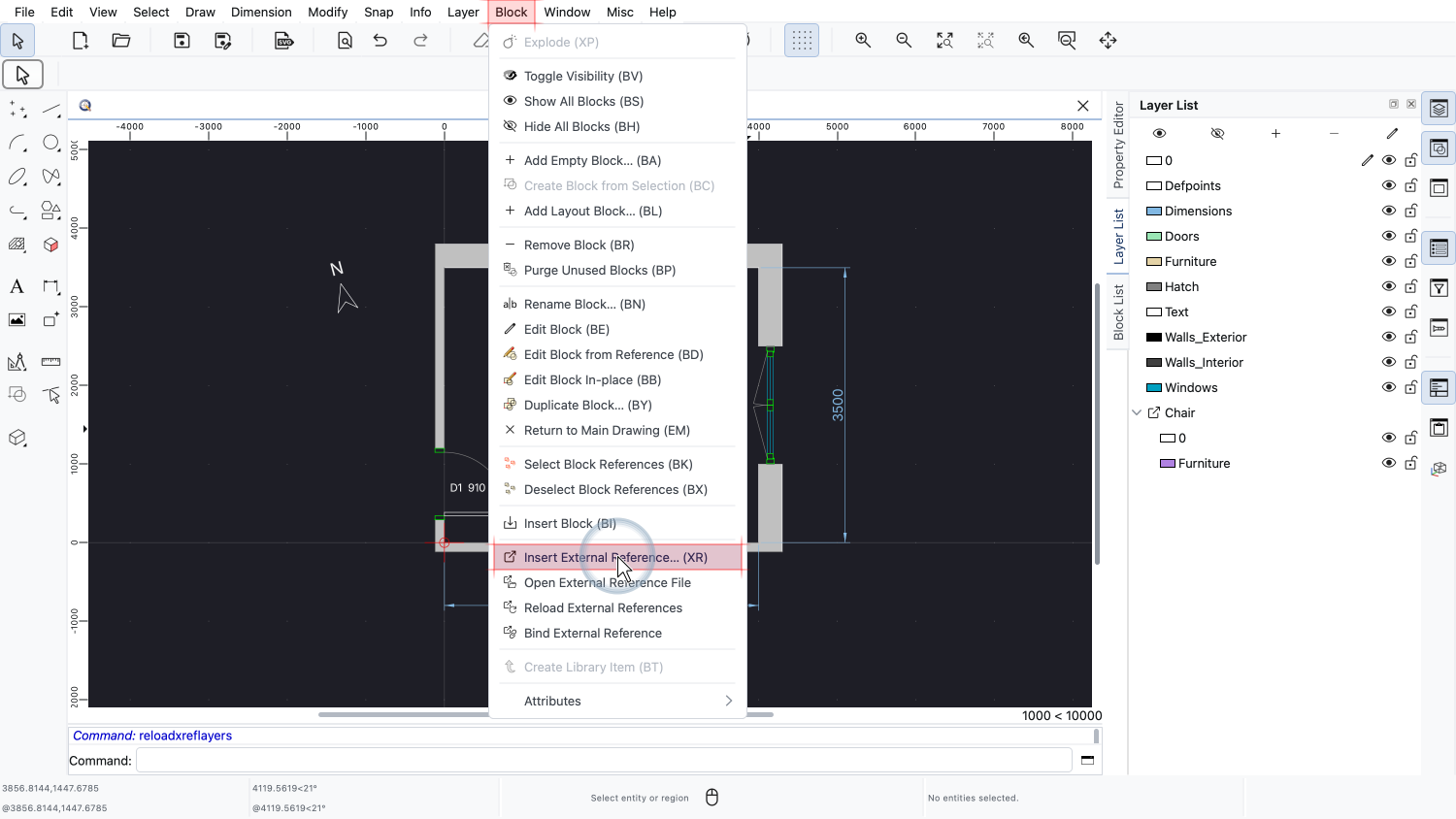
To insert an external reference, we open the Block menu and choose Insert External Reference.
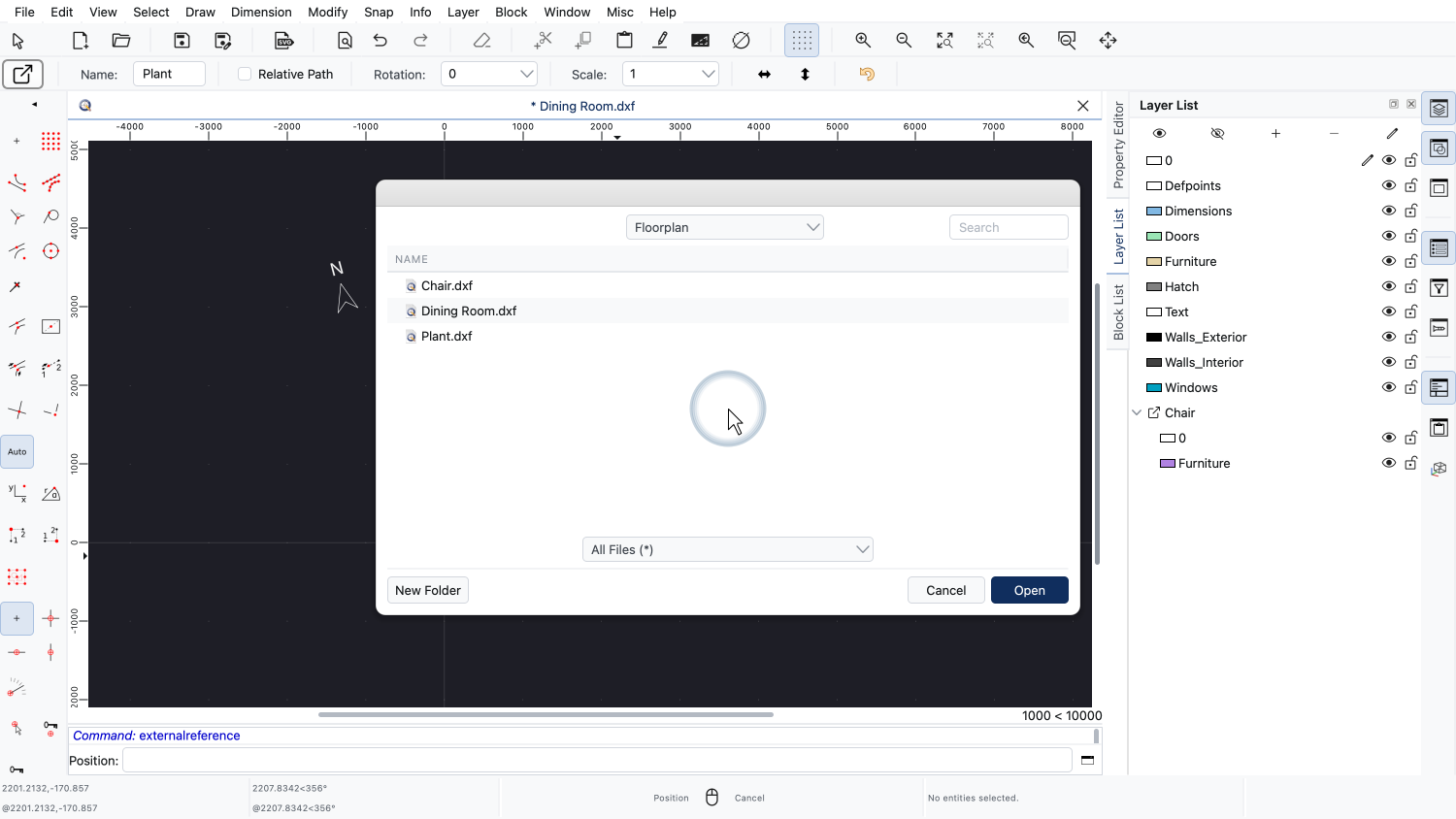
A dialog opens where we can choose the file we want to insert as an external reference.
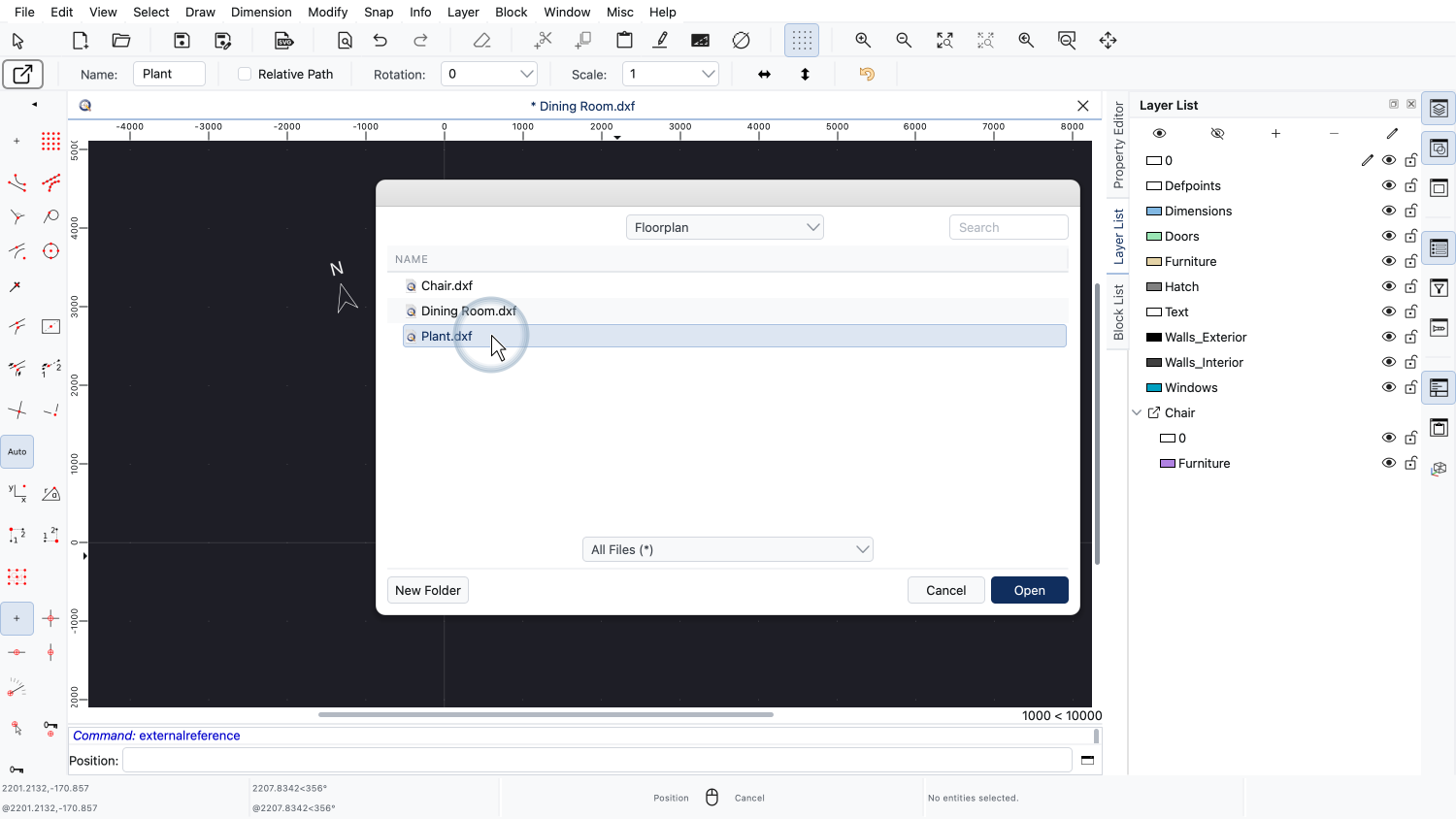
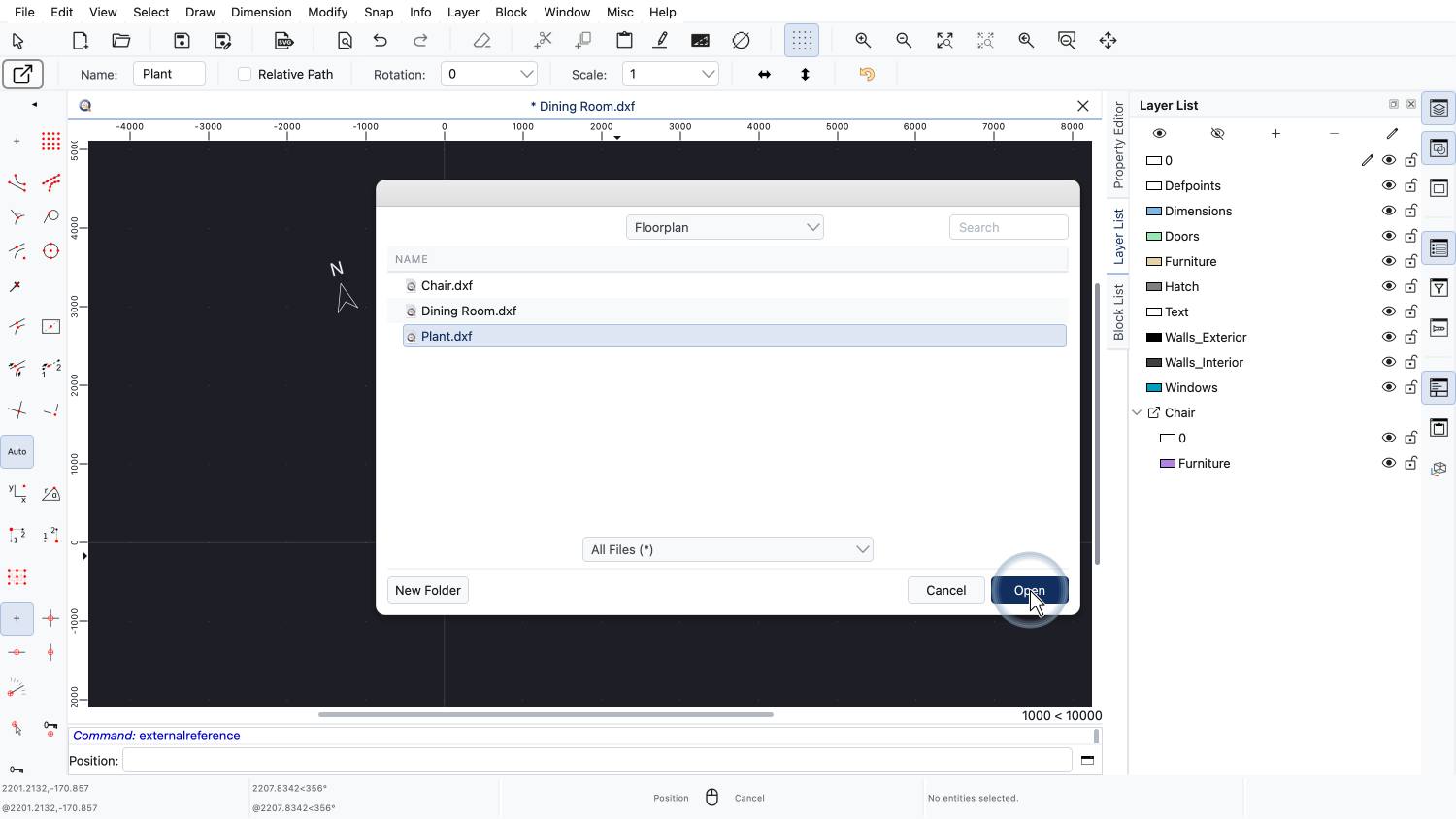
We select the file with the plant drawing.
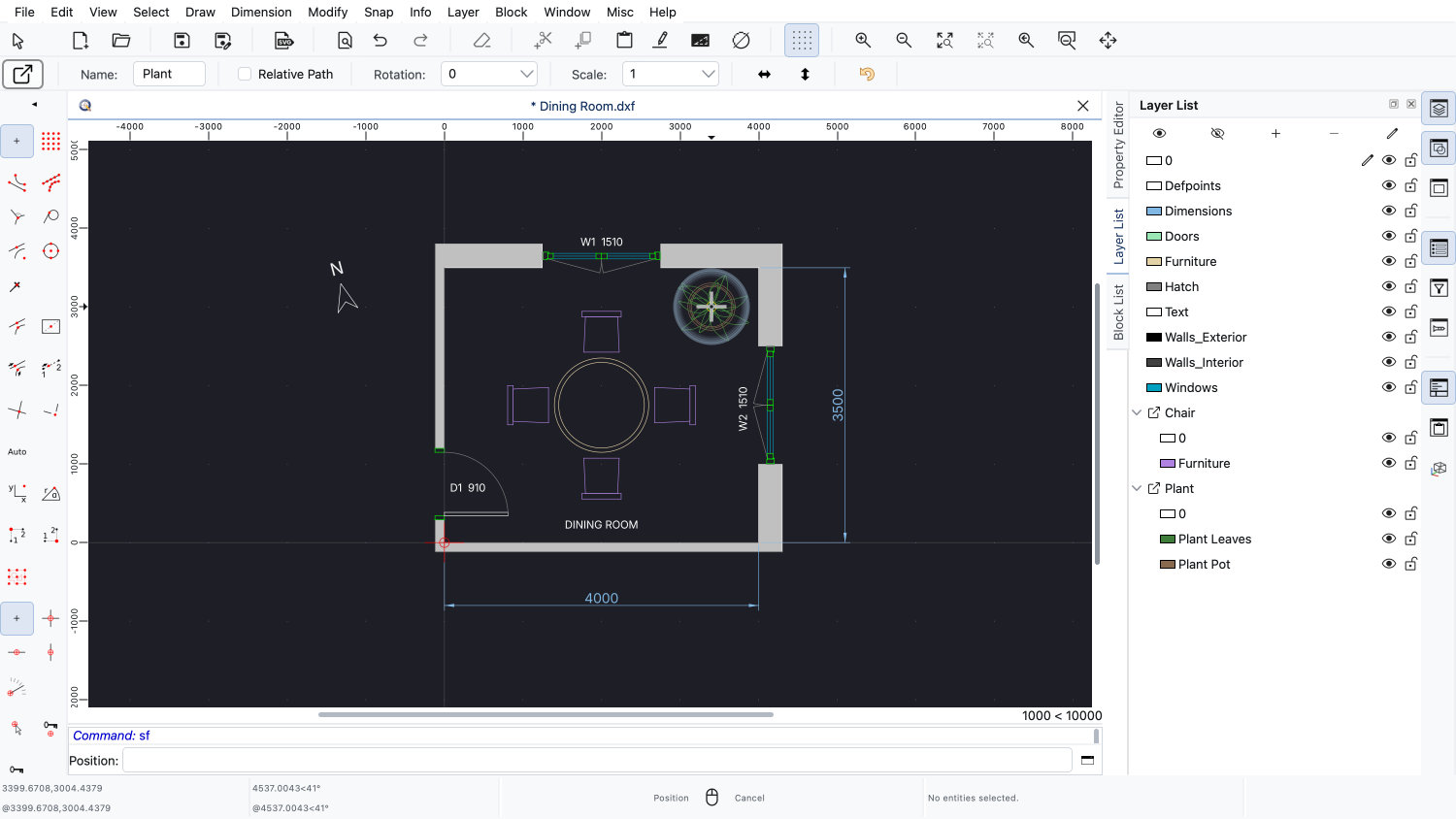
We can now click in the drawing to place the external reference.
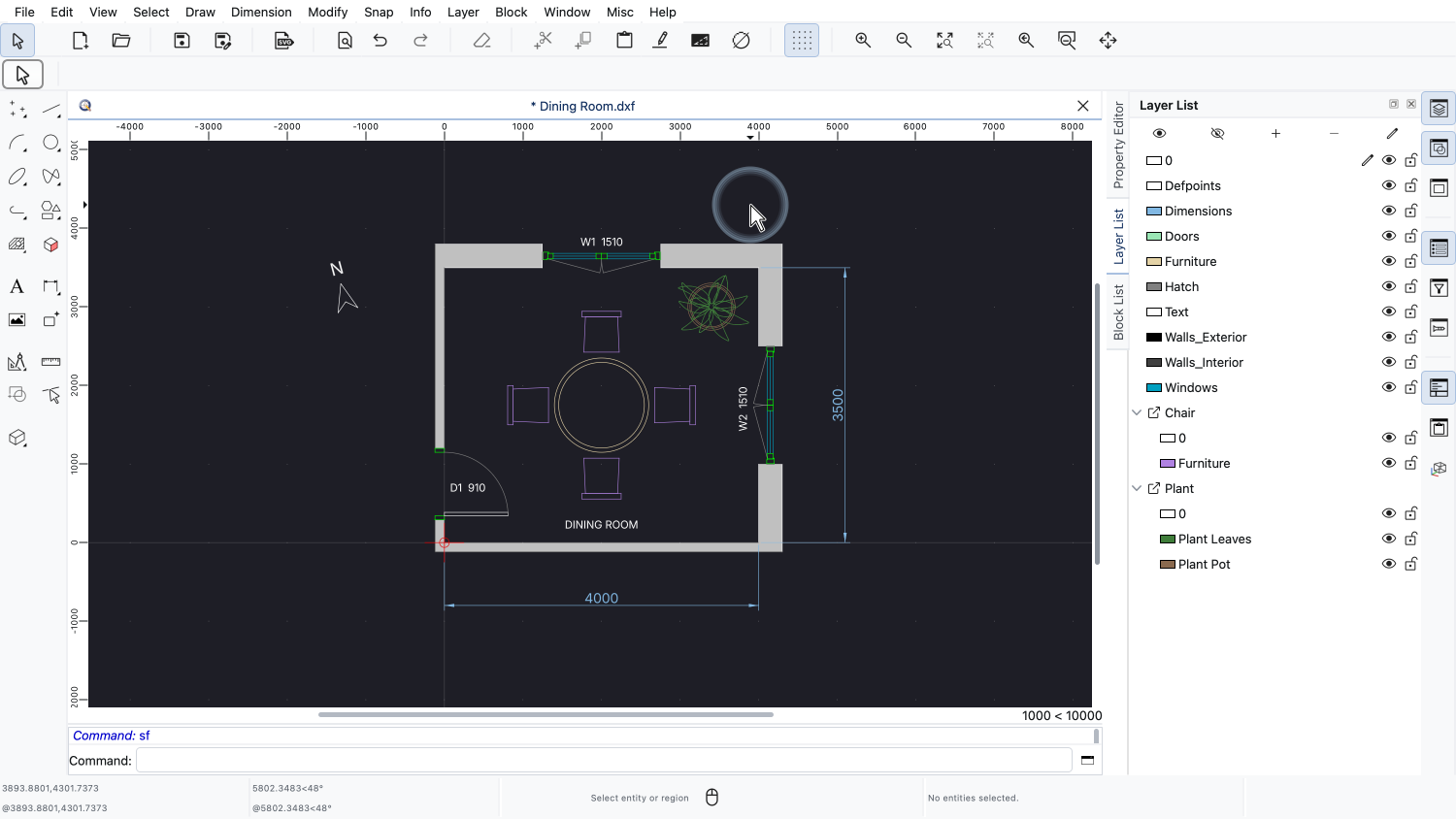
The plant from the chosen file appears now at the position we chose.
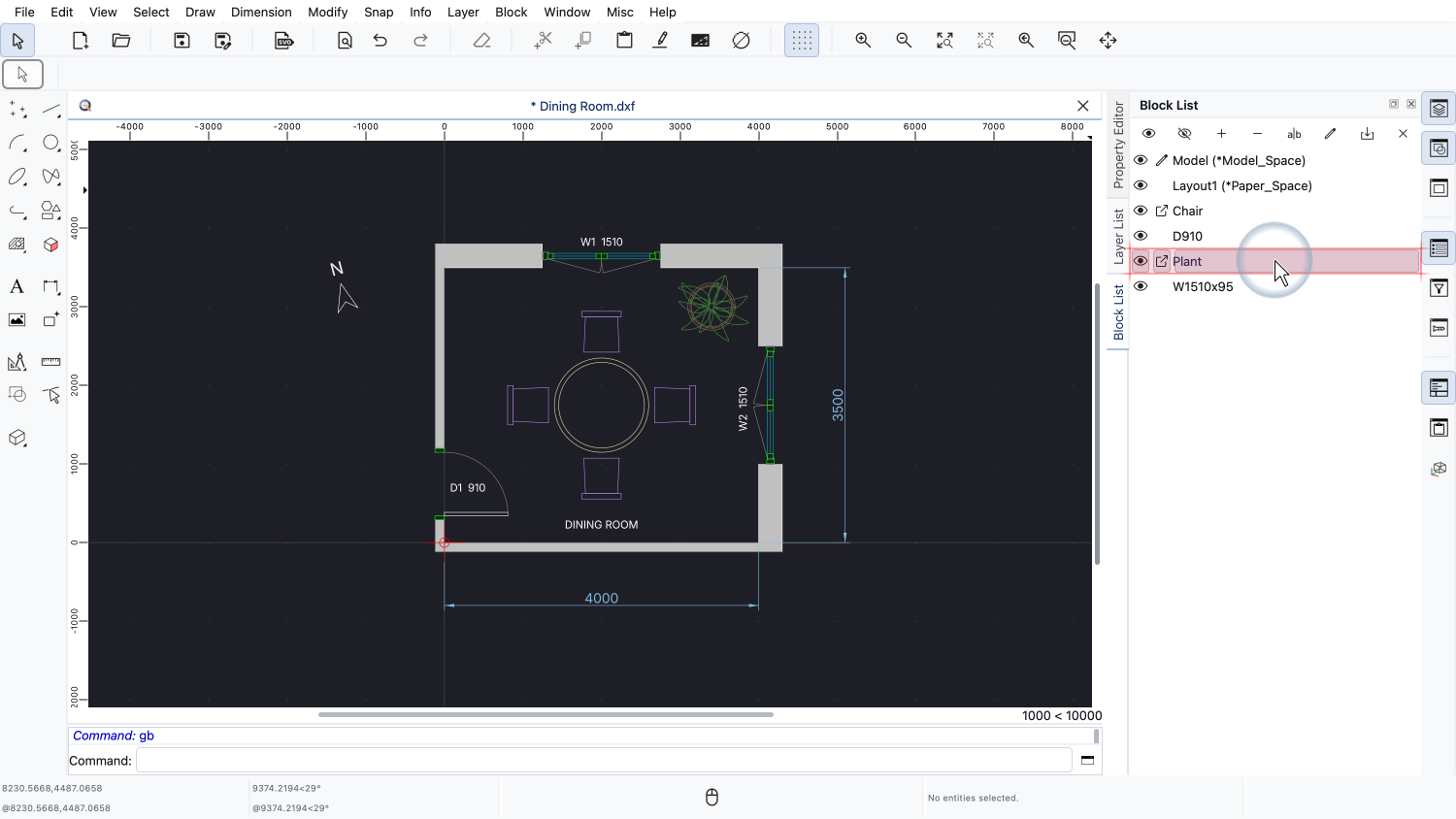
In the block list, we can see that the external reference has been added.
If we want to view or edit an external reference in its own file, we can open it directly from within our drawing.
Let's say we want to add a round cushion to all chairs of our floor plan.
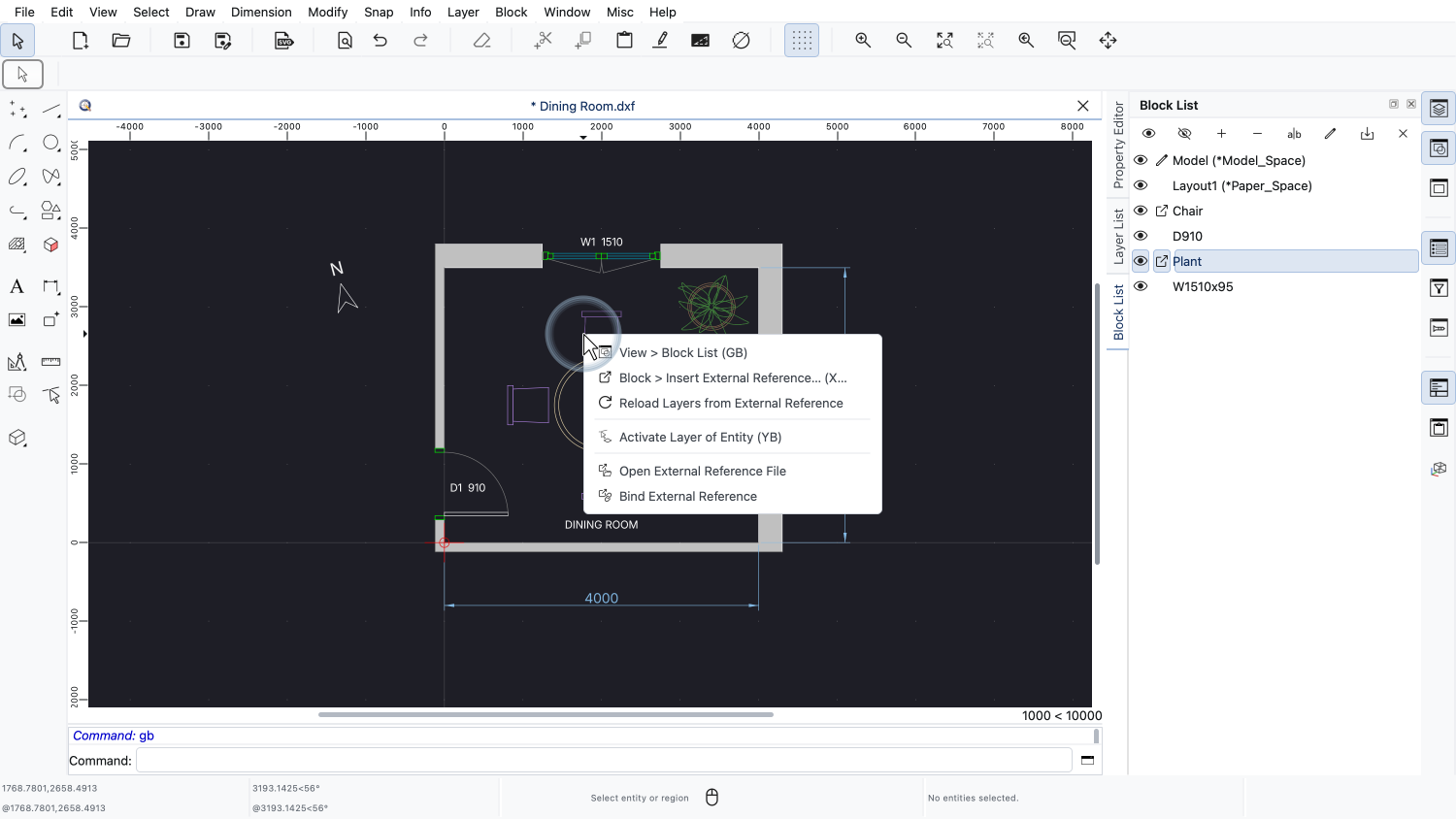
We right-click an external reference in the drawing or in the block list to open its context menu.
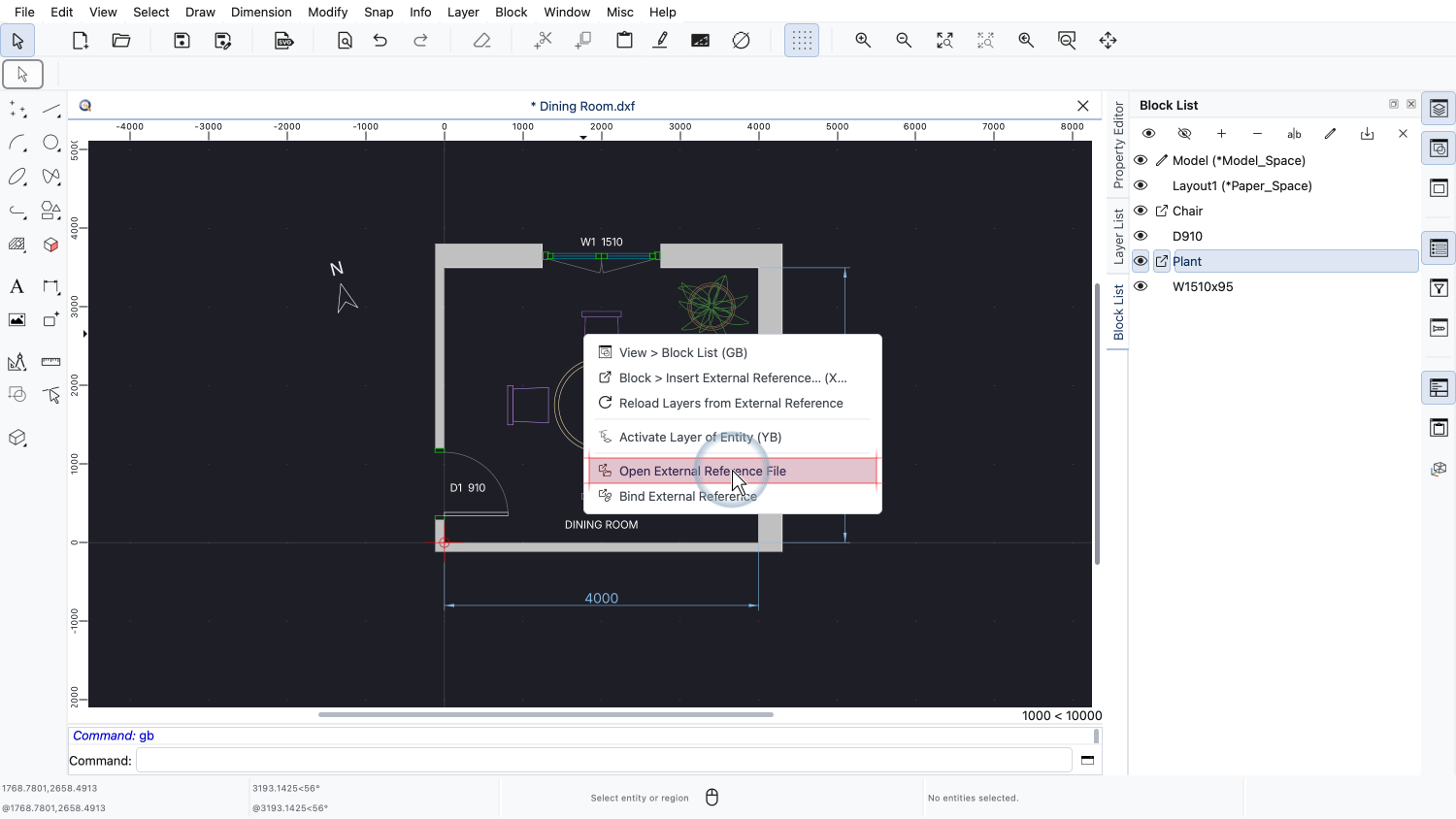
Since the chair is an external reference, the context menu offers the tool Open External Reference File.
We choose this tool to open the file of the chair.
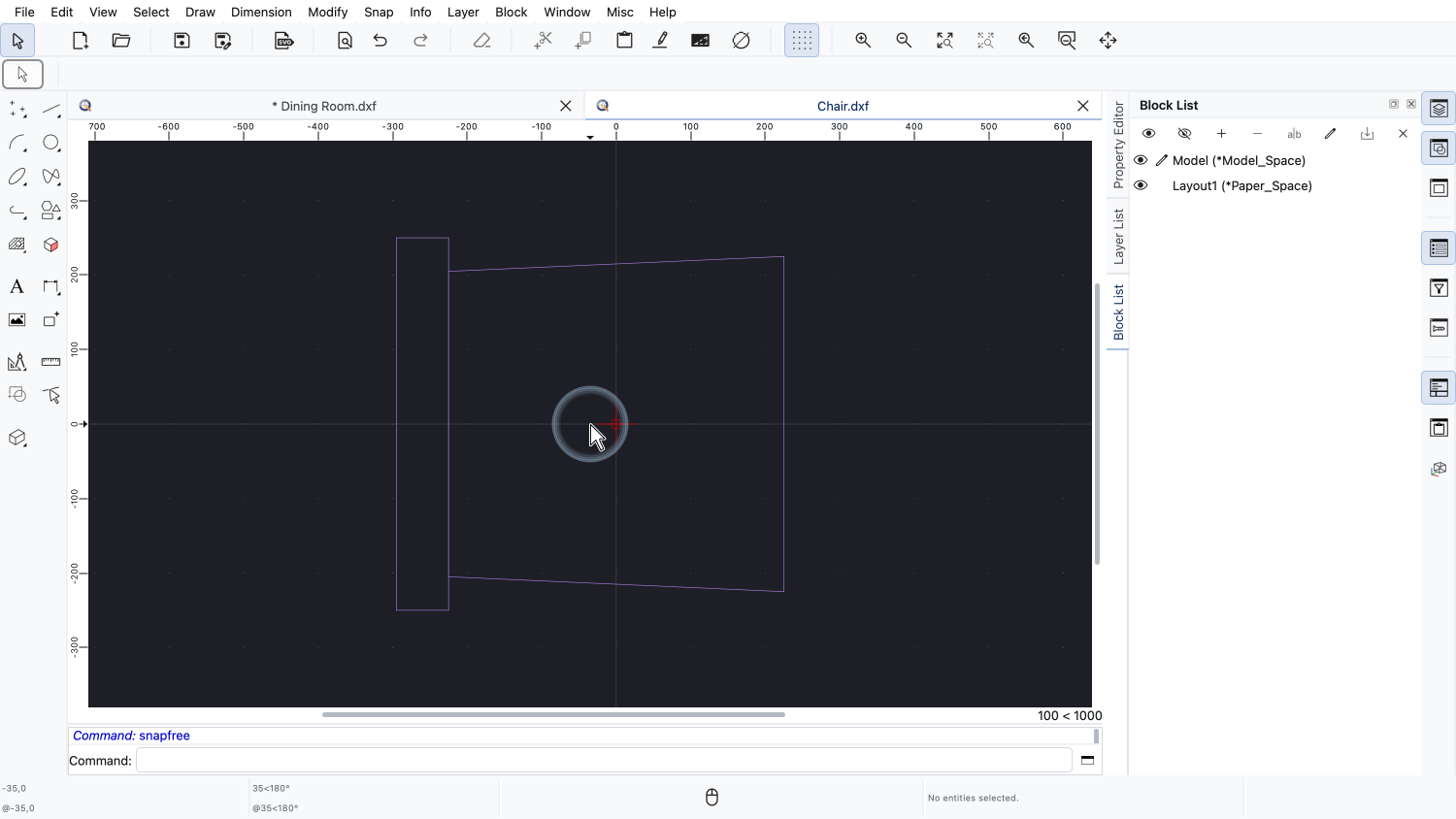
QCAD opens the external reference file called "Chair.dxf" as a separate drawing in its own tab.
We can now edit this file independently, just like any other drawing.
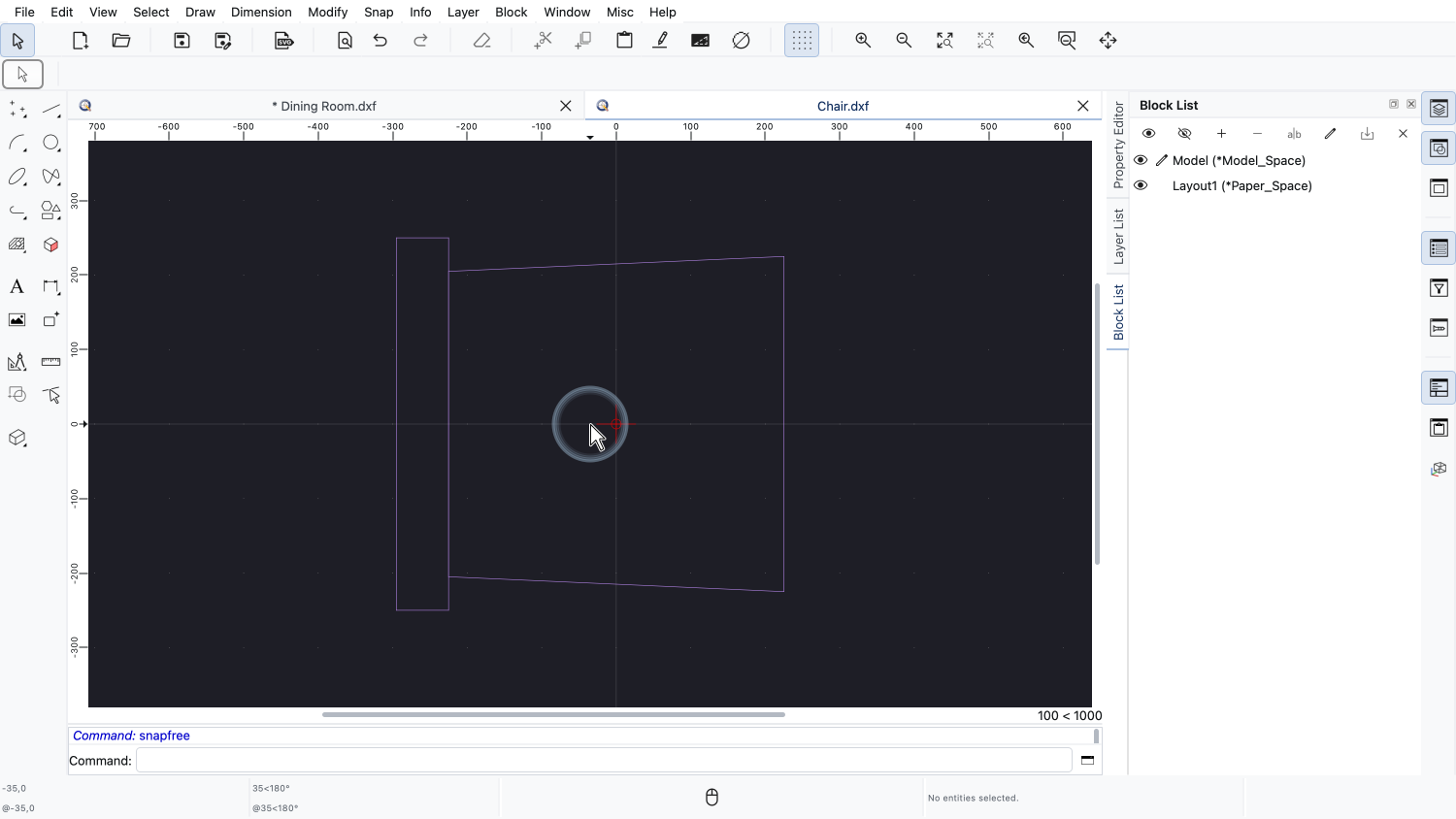
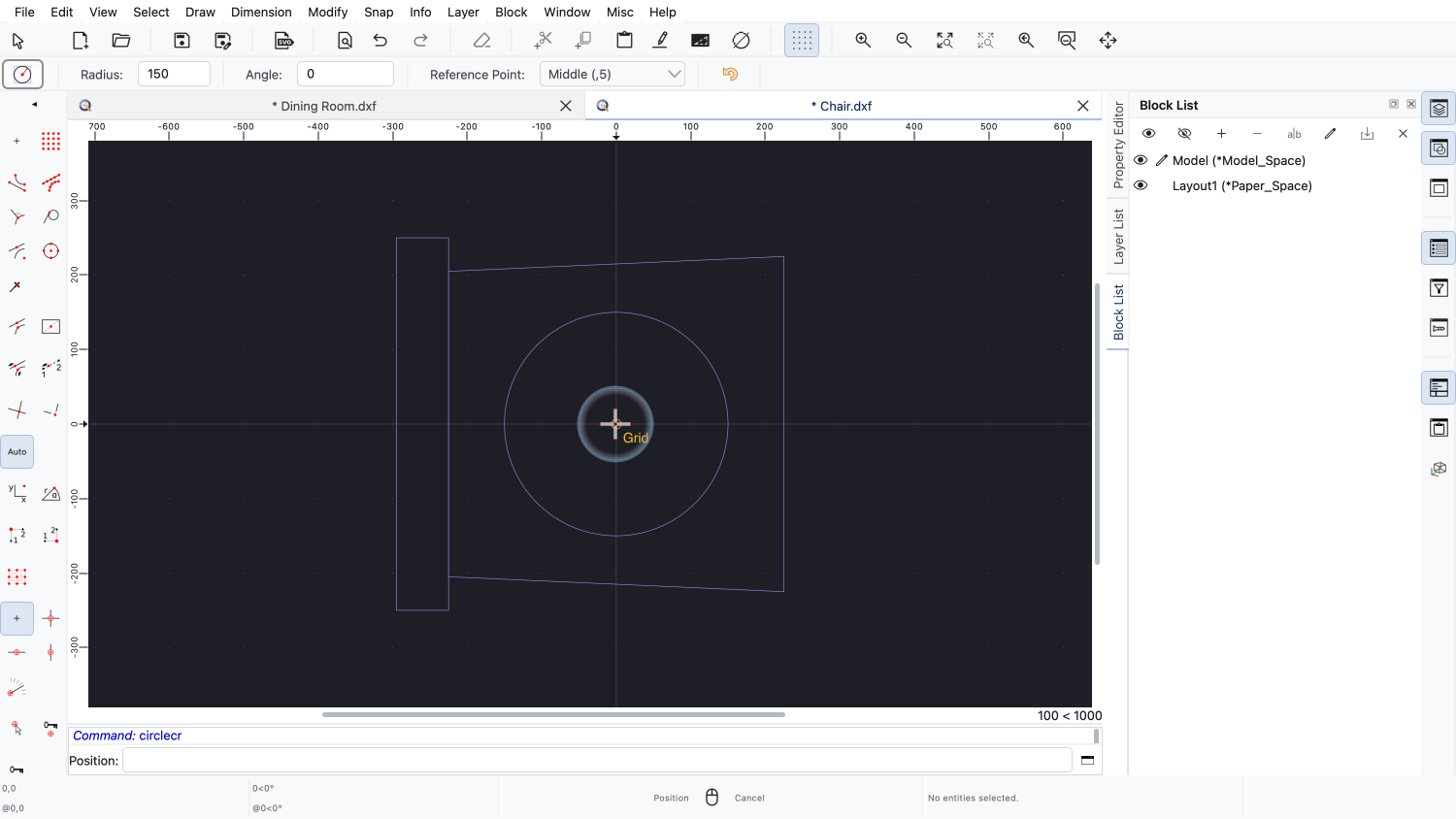
We draw a circle in the middle of the seat, using the circle tool with center and radius.
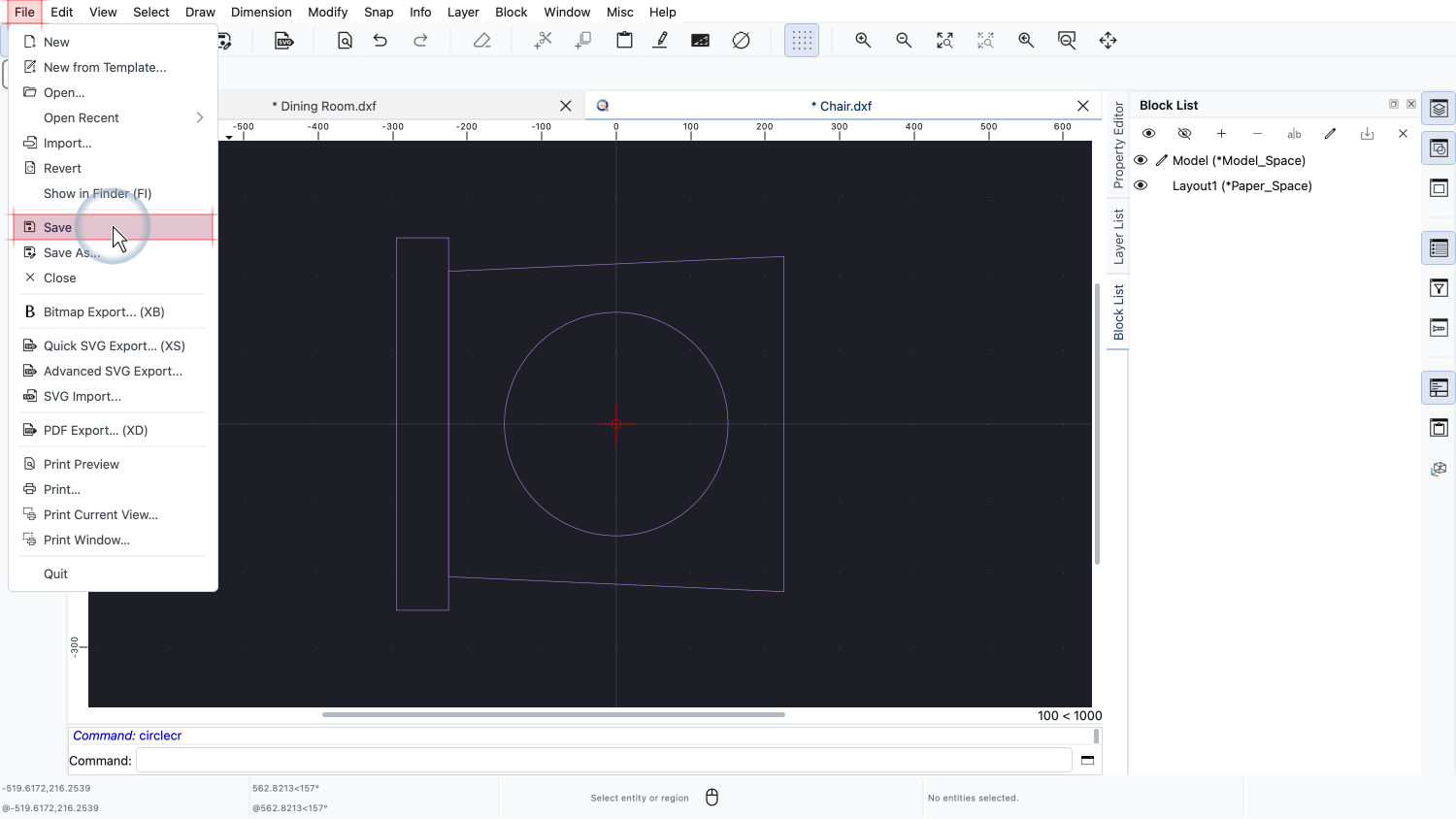
We save the changes to the chair file.
All drawings that link to this chair file can now be updated to reflect the change.
QCAD monitors the files of external references for changes while a drawing is open.
When we switch back to our floor plan, QCAD has detected that the chair file was modified.
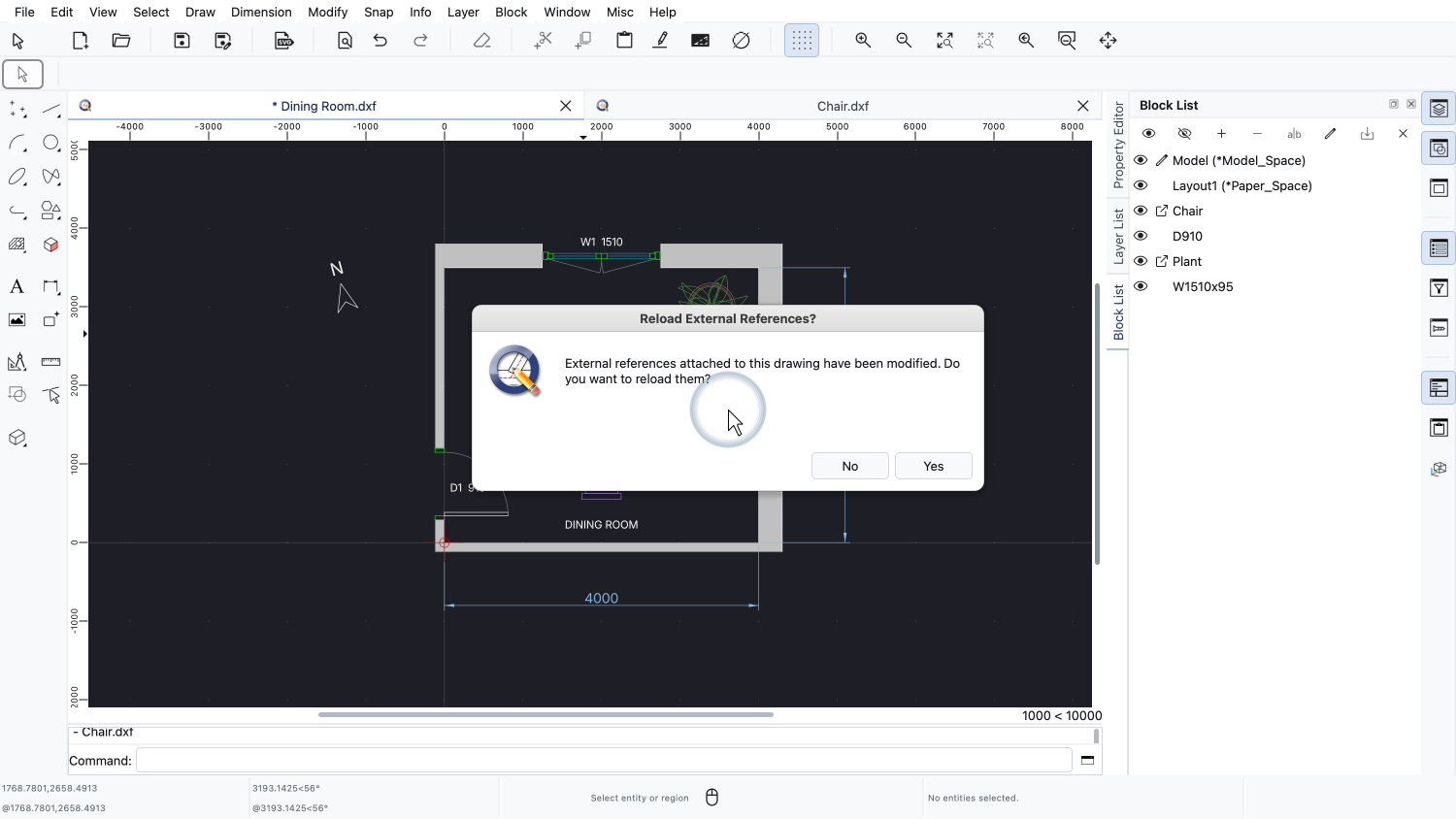
A message appears asking whether we want to reload the external references to show the updated version.
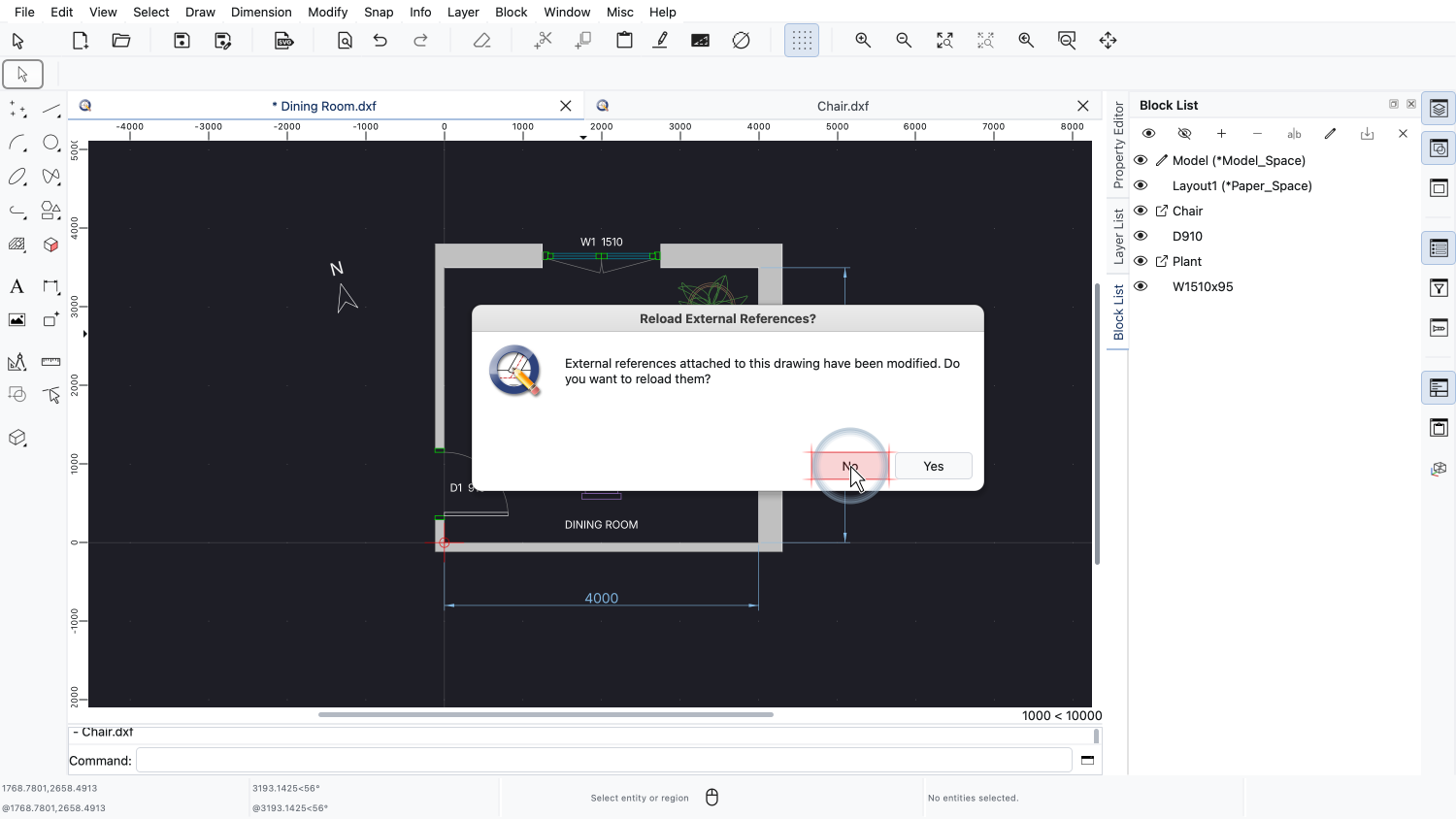
We can choose not to reload for now, and update the drawing later manually.
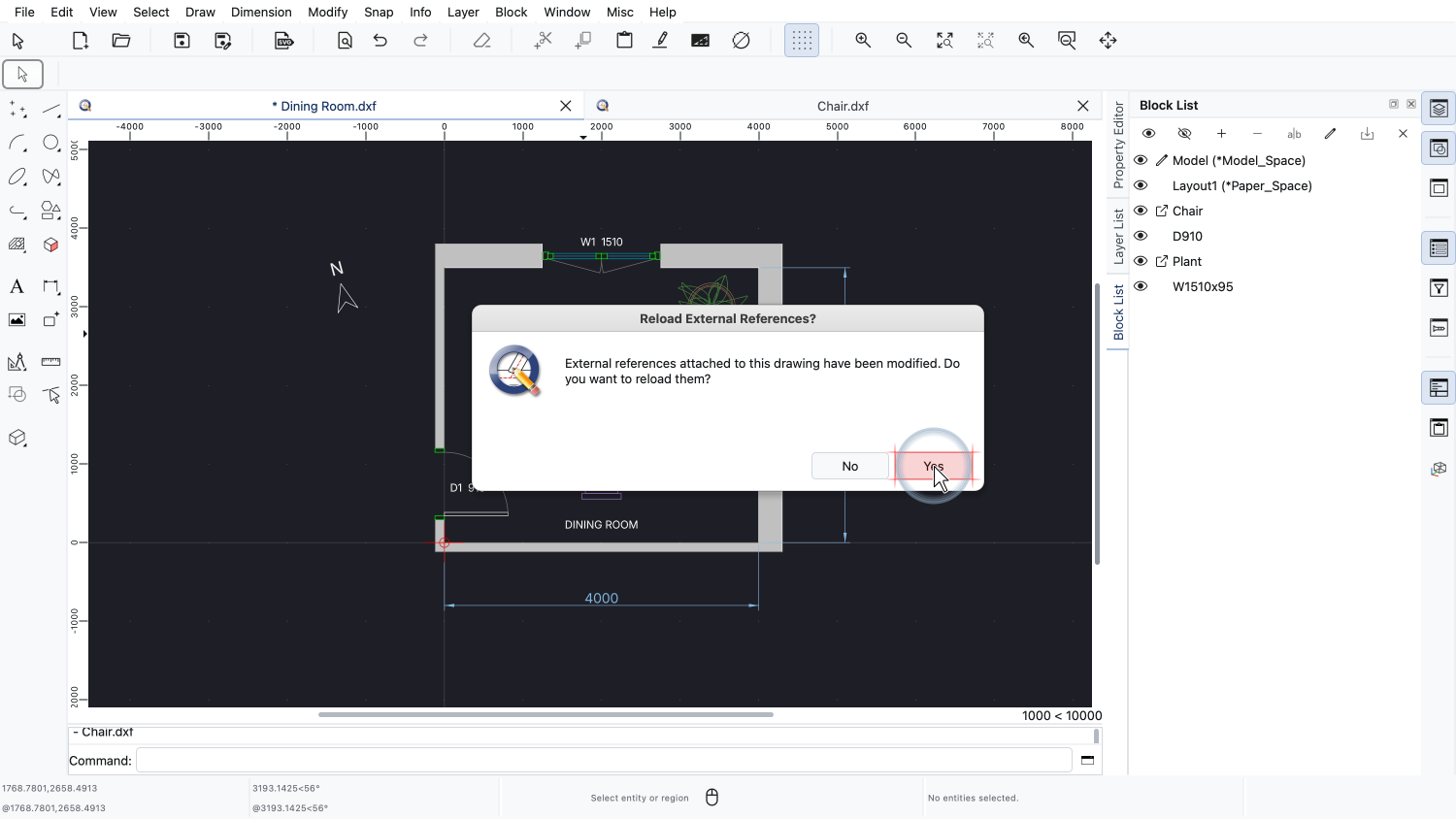
Or we can choose to reload the XRefs now to update our drawing immediately.
We choose to reload the XRefs to show our changes to the chair drawing.
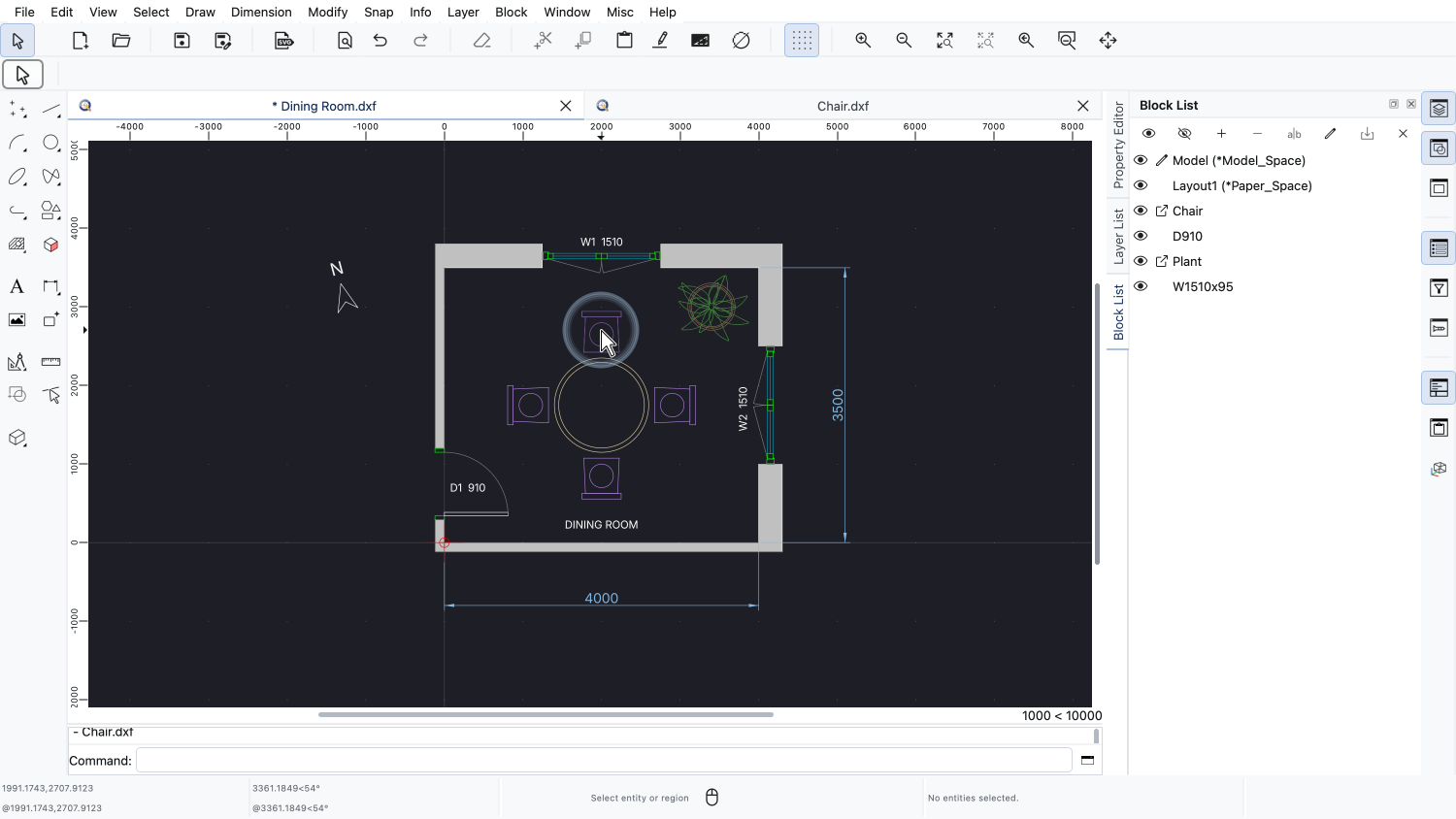
The drawing is updated and all chairs now show the cushion we added to the chair file.
We can also reload all external references in a drawing manually at any time.
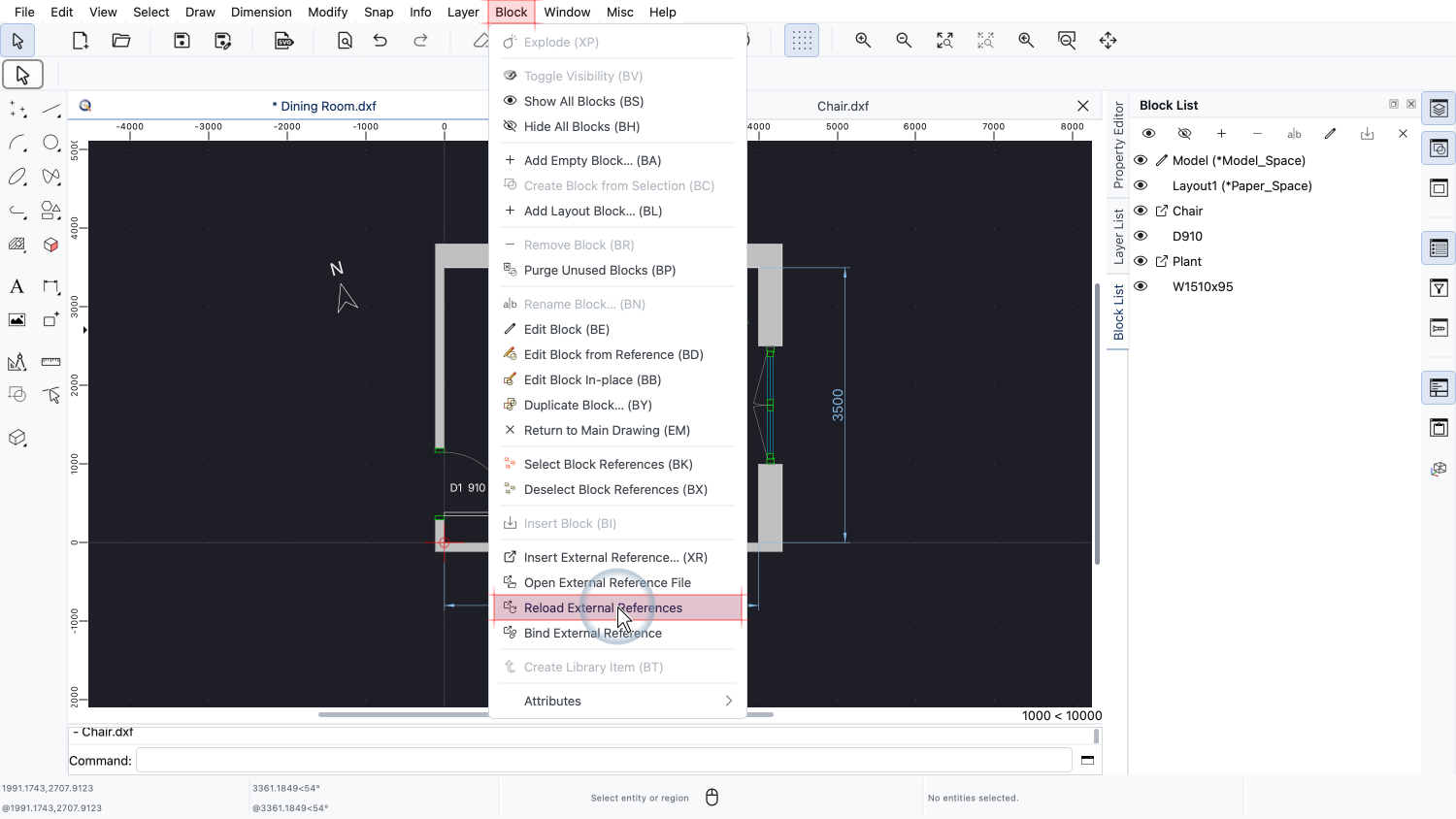
We use the Block menu and choose Reload External References.
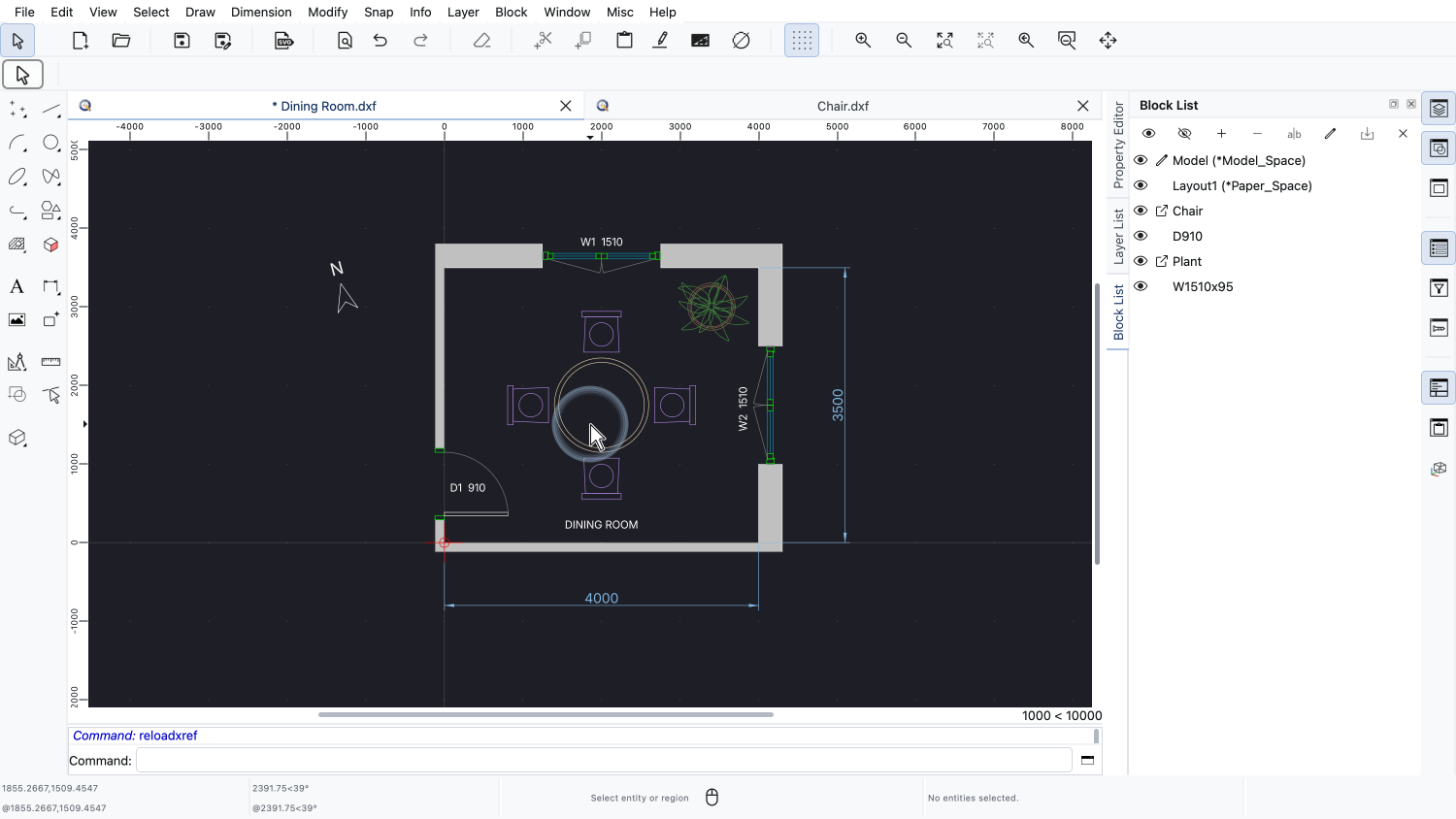
This immediately reloads all XRefs in the current drawing from their respective files on disk.
This is useful to make sure the drawing always reflects the most current state of all linked files.
Sometimes it is desirable to permanently embed an external reference into a drawing.
This is called binding an XRef.
After binding, the XRef is a regular block and its content is stored directly inside the drawing file.
The drawing then no longer depends on the external file and can be shared or archived as a single self-contained file.
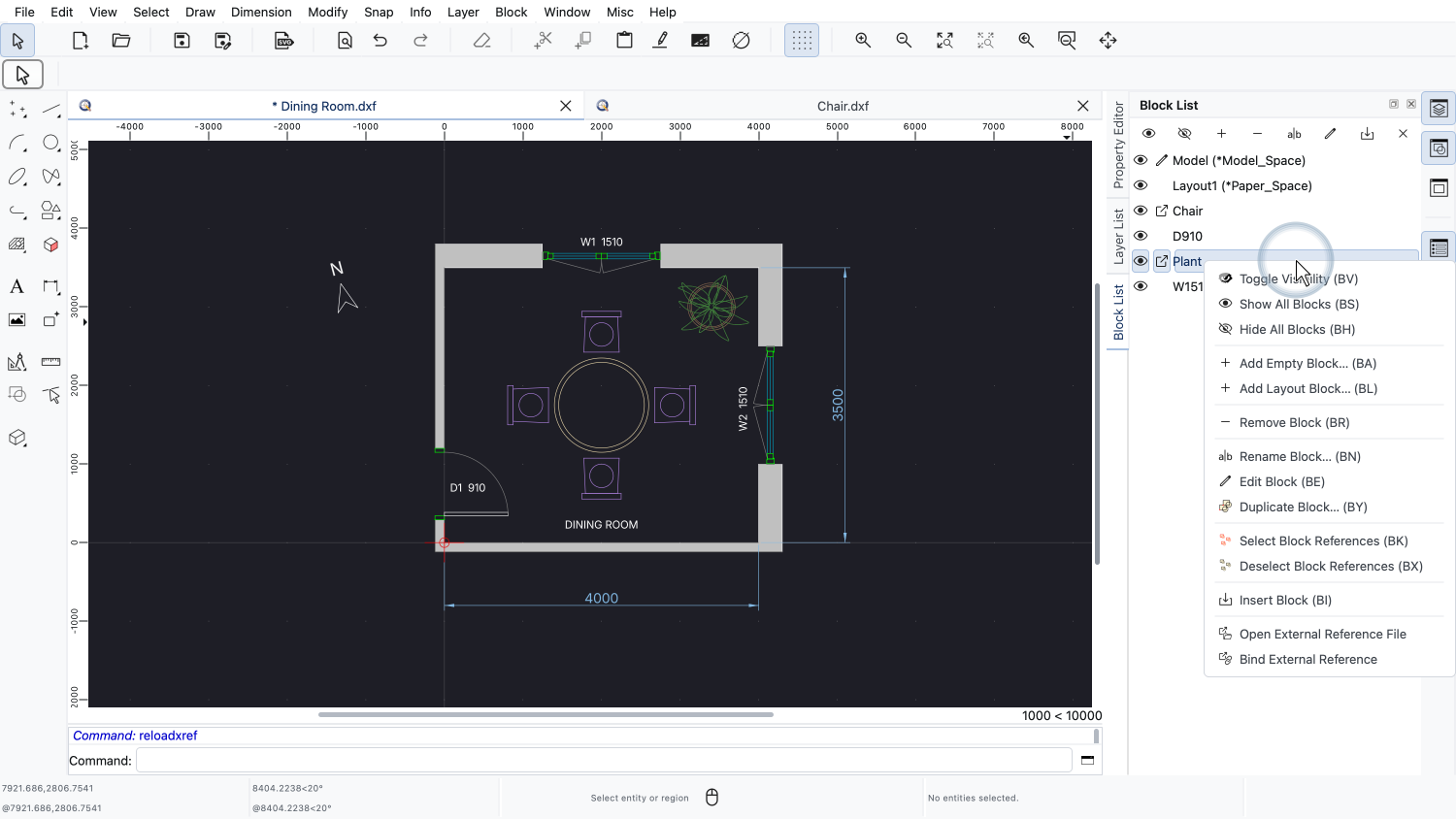
To bind the external reference of the plant, we right-click it in the block list or in the drawing to show its context menu.
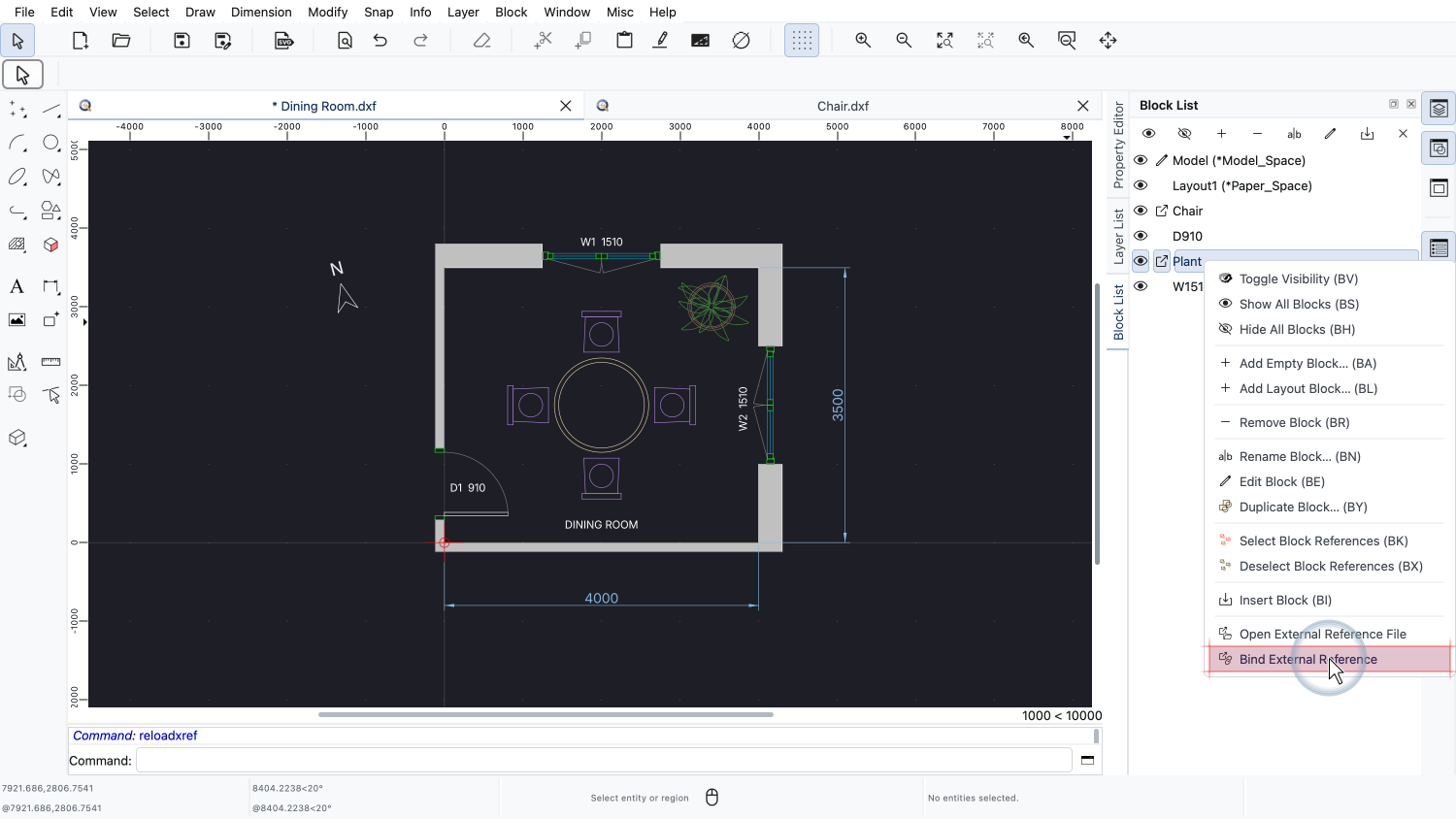
Since the plant block is an external reference, the context menu offers the tool Bind External Reference.
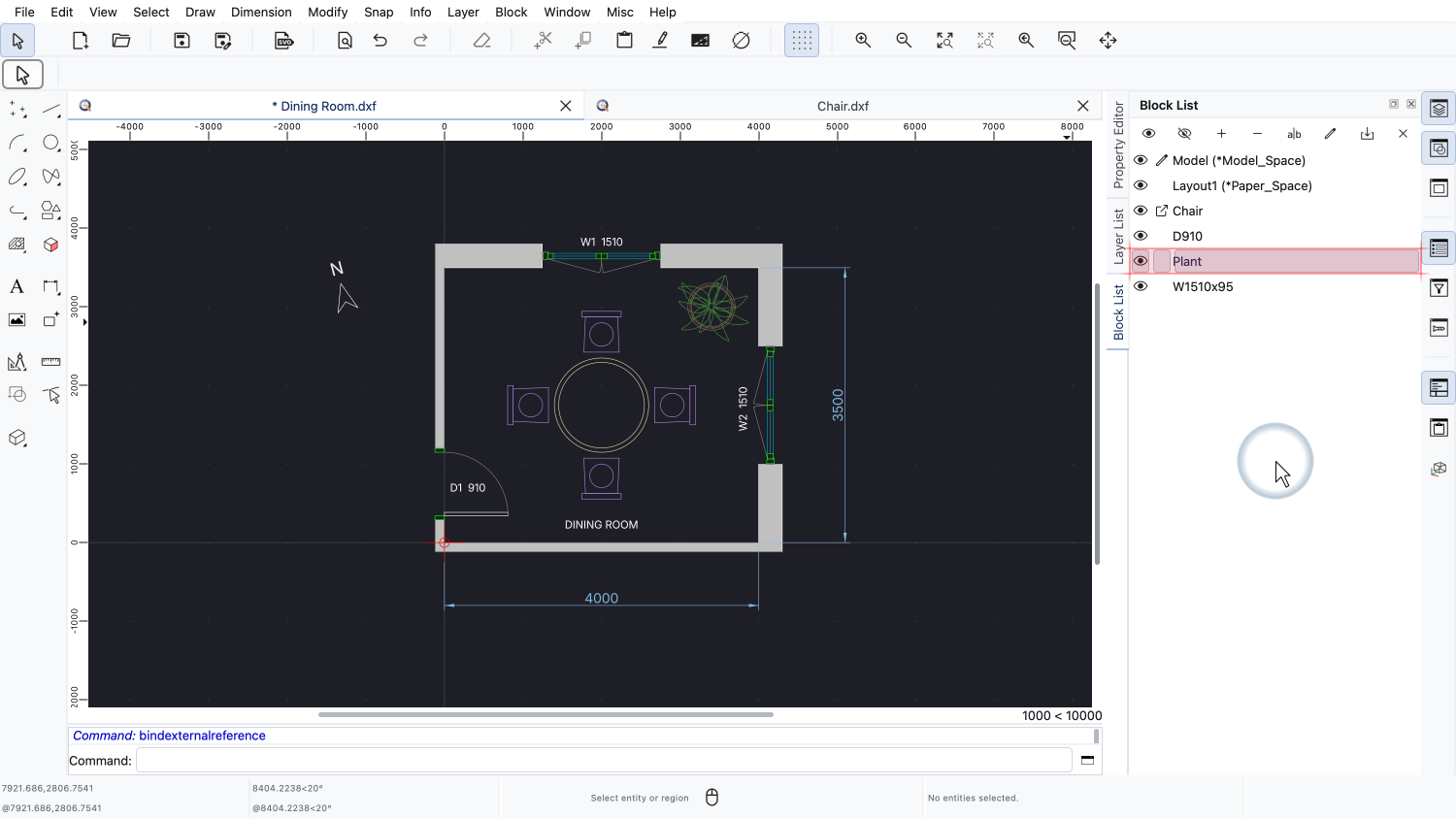
The external reference is now a regular block stored inside our drawing.
We can see in the block list that the special external reference icon is gone.
The block now behaves exactly like any other block we have created ourselves.
Changes to the original plant file will no longer have any effect on this drawing.
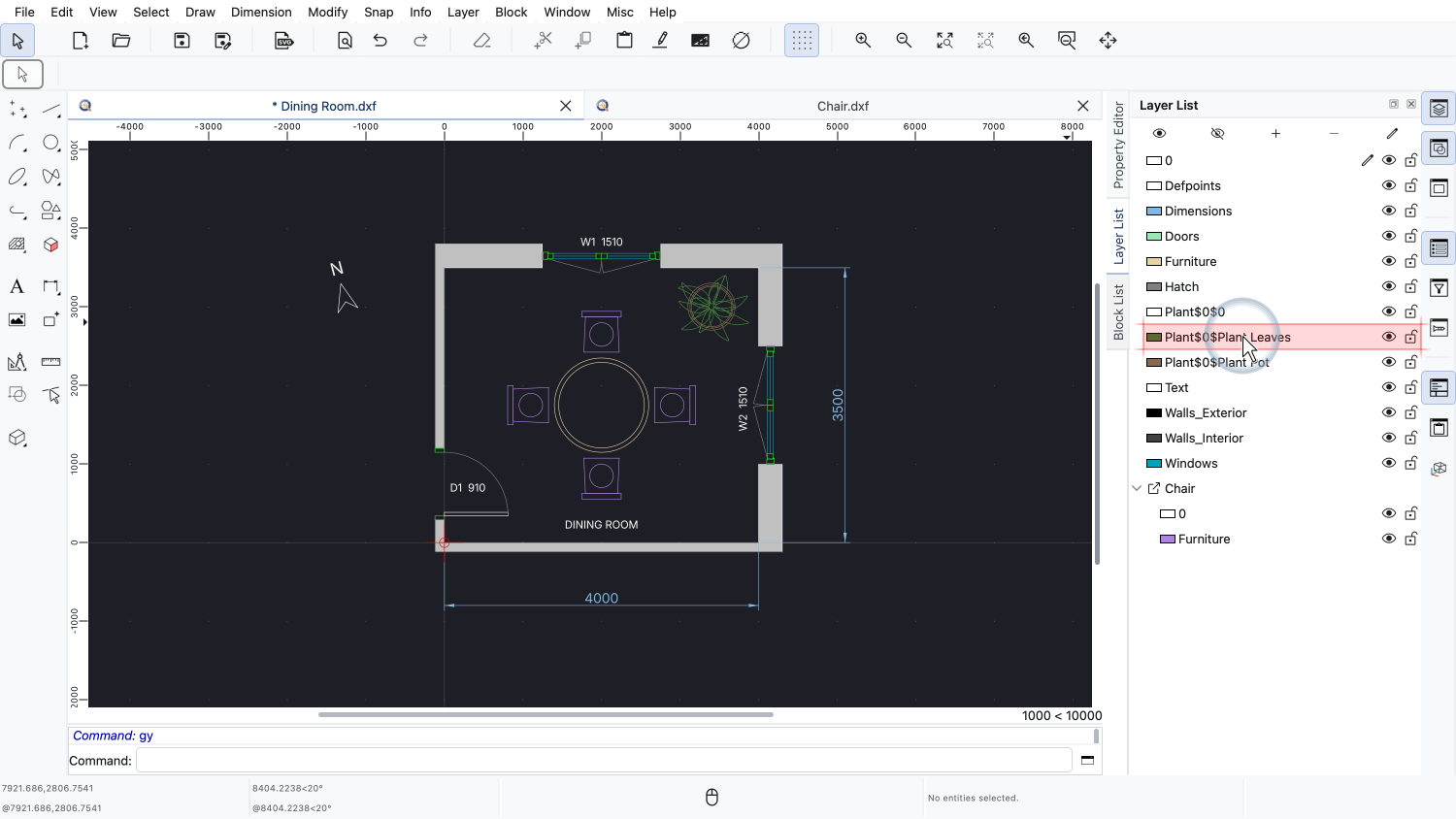
In the layer list, the layers of the plant XRef are now regular names with a special name to avoid collisions with existing layers.
You should now know how to insert, edit, reload and bind external references in QCAD.
XRefs are an efficient way to keep large projects organized and to collaborate with other people.
Be sure to practice this with your own QCAD installation.
Thank you for watching this QCAD tutorial.