

Working with the Part Library
Finding CAD Components
Section titled “Finding CAD Components”Any collection of DXF or DWG (and to a certain degree SVG) files can be used with QCAD as a part library.
Various QCAD part library items are available from our site at:
https://www.qcad.org/qcad-add-ons
However, there are countless online resources that offer free and paid collections of DXF/DWG files for use in any CAD system. Depending on your specific needs, you can use a search engine to look for existing DXF/DWG files with CAD symbols or blocks.
Here are just a few such sites which have collections of DXF/DWG files:
- Architecture
- Architecture, Electrical, Mapping, Mechanical, Piping, P&ID, Transportation
- Electronic Circuits
- Architecture, Mechanical
- Various / Art / Clipart
Countless other resources can be found using an Internet browser. Search for “DXF” and a keyword you are interested in, for example “DXF electrical symbols” or more specific “DXF electrical outlet”, etc.
Adding Files to the Library Browser
Section titled “Adding Files to the Library Browser”Once you have downloaded DXF/DWG files and extracted them if they came as a ZIP file, you need to tell QCAD where to find these files.
Let’s assume you have downloaded various DXF files into C:\Users\User\MyLibrary (or /Users/User/MyLibrary) and sub folders thereof.
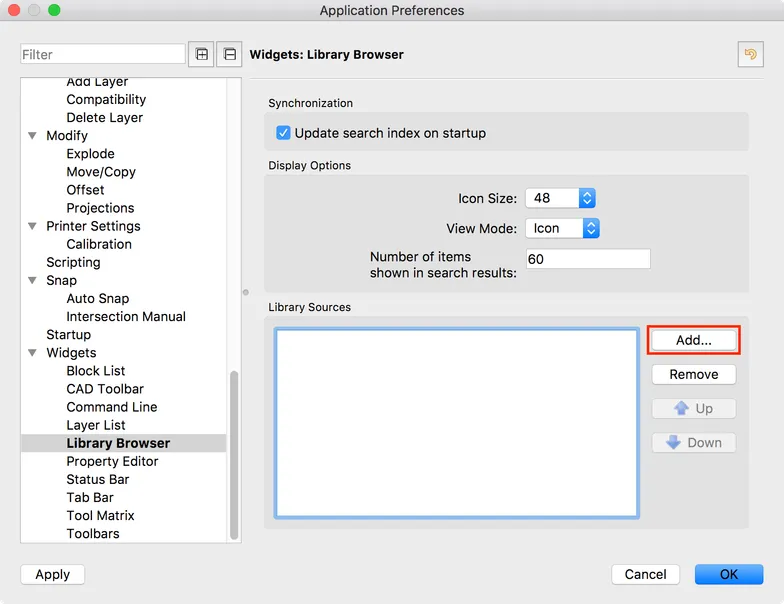
To tell QCAD where to look for this library of CAD files, add this path under Edit > Application Preferences > Widgets > Library Browser > Library Sources > Add:
After restarting QCAD, the library browser will show a new library (e.g. “MyLibrary”) with all the subfolders and items in it.
If the library browser is not already shown, you can display it using menu View > Library Browser:
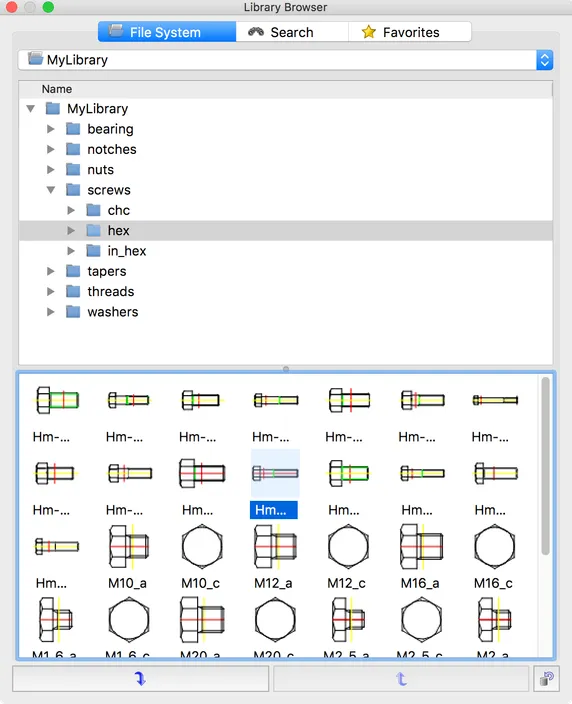
If you cannot see the new folder or items, please click the button at the bottom right to re-synchronize the database from the files on disk. Starting with QCAD ≥ 3.28, this button is no longer available and synchronization is no longer necessary.
Supported File Formats
Section titled “Supported File Formats”The QCAD Library Browser supports all files supported for reading by QCAD. Starting with QCAD 3.28, this includes PDF files and bitmap files.
Working with a File Explorer / Finder
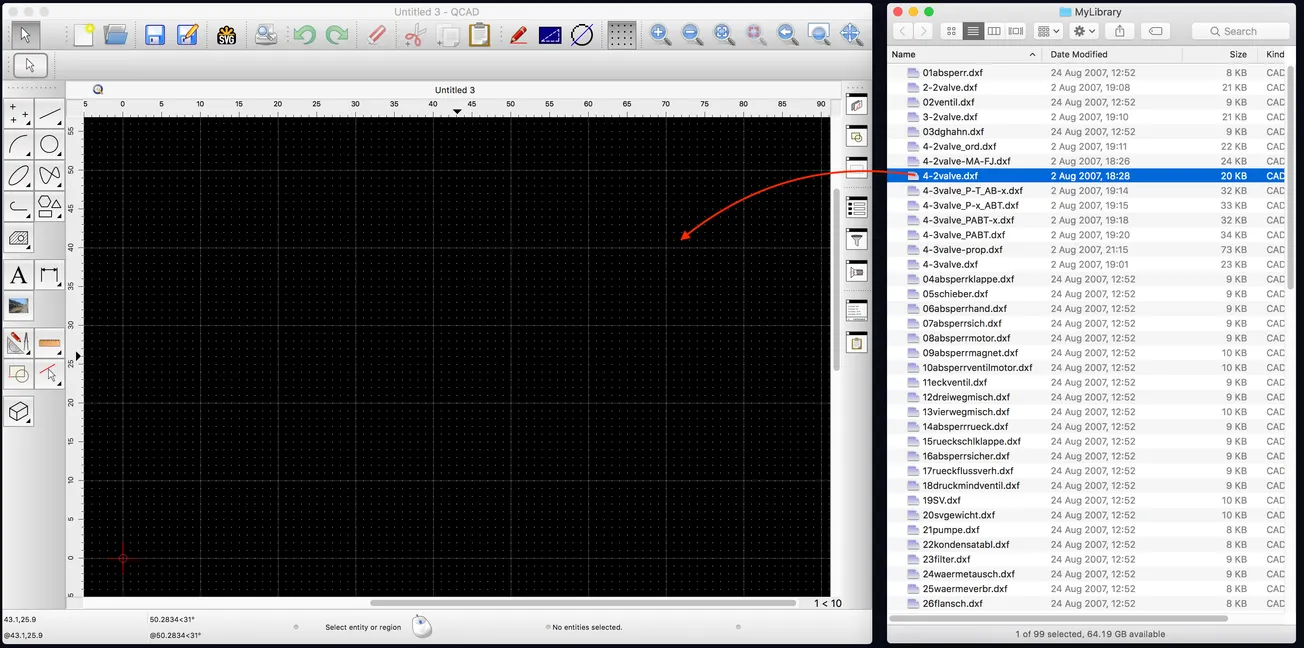
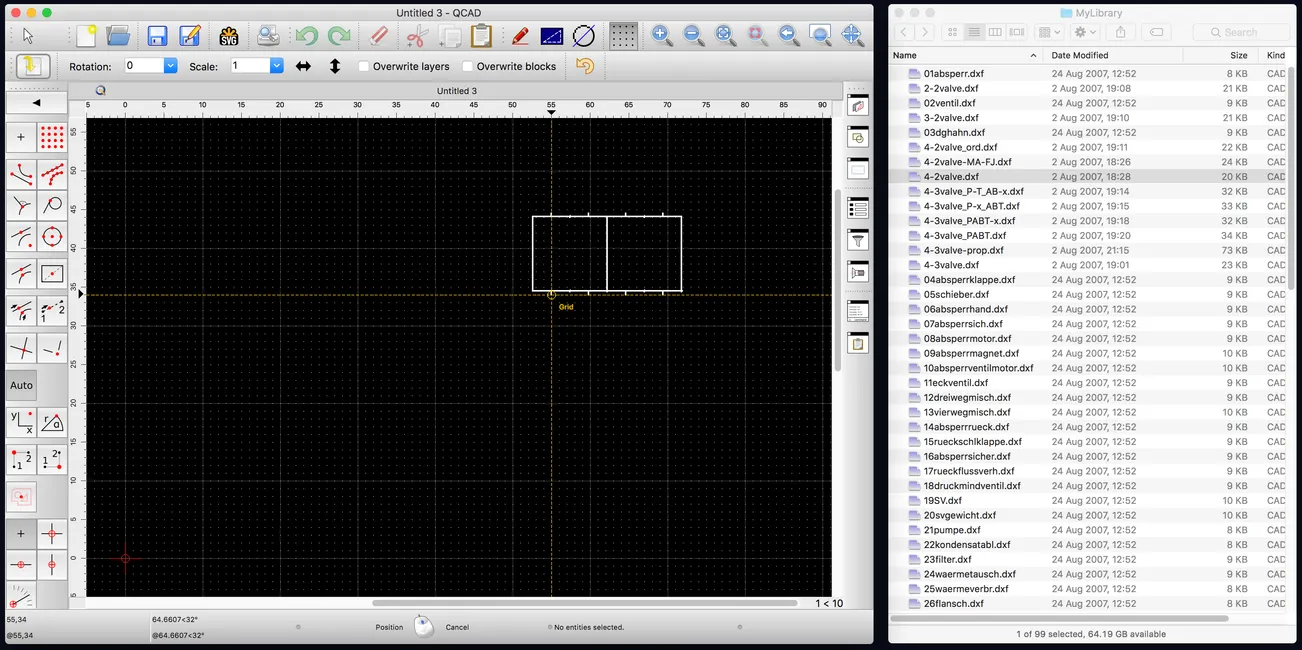
Section titled “Working with a File Explorer / Finder”As an alternative to working with the QCAD Library Browser, you might find it more convenient to work with your favorite file browser instead. If you keep QCAD and any file browser open side-by-side, you can simply drag files over into your drawing area to insert them as blocks.
Extracting ZIP Archives
Section titled “Extracting ZIP Archives”If you need help extracting downloaded ZIP files, please refer to the documentation for extracting ZIP files under Windows, macOS or Linux.